
Contacts
Contacts is a directory for people outside your company: vendors, contractors, clients, colleagues at other organizations, and anyone else your team regularly deals with.
Contacts are not employees. Adding someone to Contacts does not create a mizuiro account, send an invitation email, or grant access to anything. A contact is purely a name in your team’s shared directory, useful so people can be @mentioned in tasks, touchpoints, incidents, and other records. If you want to add someone who needs to log in to mizuiro, go to Sidebar → People instead - that’s where employees and supervisors are invited.
- Who can use it: managers and supervisors create and manage contacts. All tiers can view the directory and @mention contacts.
- Where: Sidebar → Contacts.
- Always on. Contacts is part of the core platform and can’t be disabled.
- Go to Sidebar → Contacts.
- Click Add contact.
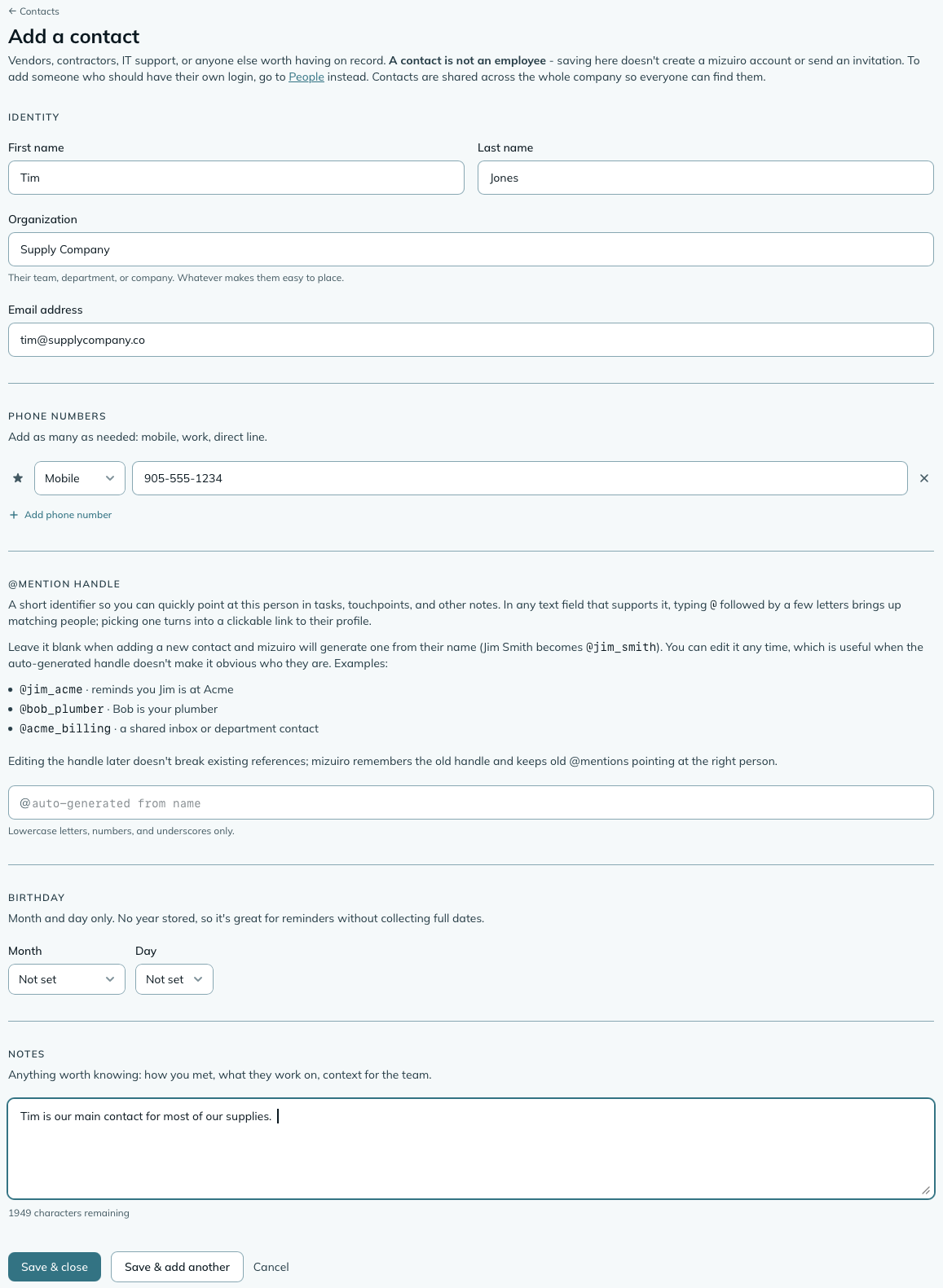
- Fill in the name and any other details - organization, job title, email, phone numbers, birthday, and notes.
- Click Save & close, or Save & add another if you have a batch to enter.
mizuiro generates a mention handle automatically from the contact’s name. The handle
is how you @mention them anywhere in the app - tasks, incidents, touchpoints, performance
reviews and concerns, improvement plans, written warnings, awards, conferences, training
records, and other contacts’ notes. It looks something like @jim_smith or
@acme_contracts.
Once a contact is in your directory, you can mention them in any free-text field across
the app by typing @ followed by their handle or name. The autocomplete shows matching
employees and contacts together. If nobody matches, the dropdown offers an Add as
contact shortcut that opens a small dialog right where you are, so you can create the
contact without losing what you were writing.
When you @mention a contact, mizuiro links the text to their profile. The contact’s profile page shows a Referenced in section listing every record that mentions them - tasks, incidents, touchpoints, performance reviews and concerns, improvement plans, written warnings, awards, conferences, training records, and other contacts’ notes. The list is scoped to records you can normally see: managers see everything, supervisors see records on their teams, and employees see records they’re personally involved in. So an employee browsing a shared contact won’t ever see a PIP or warning they wouldn’t otherwise have access to.
Each contact can have multiple phone numbers, each with a label (Mobile, Work, Home, Fax, or Other). One number can be marked as primary, which displays it prominently on the contact’s profile.
When filing an incident, you can add contacts as participants (involved or witness) alongside employees. This is useful for incidents that involve contractors, visitors, or clients who aren’t in your employee directory.
Contacts has no settings page. It’s always on and doesn’t have configurable options.
Contacts doesn’t include dashboard widgets.
Can a contact log in to mizuiro?
No. Contacts are reference records only. They don’t have accounts, passwords, or access to any part of the app. If someone who was a contact is now joining your team, add them as an employee in the normal way.
What happens to @mentions if I change a contact’s handle?
Existing mentions in the text of tasks and other records remain as-is - they’re stored as text. mizuiro keeps a history of every handle a contact has ever had, so it can still trace old mentions back to the right person. The contact’s profile page shows all mentions regardless of which handle was used.
Can employees see the Contacts directory?
Yes. All tiers can view contacts and use @mentions. Only managers and supervisors can create, edit, or delete contacts.
Is there a limit on how many contacts I can add?
No - there’s no limit on the number of contacts you can add to your company.
Can I see everywhere a contact has been mentioned?
Yes. The contact’s profile page includes a Referenced in section showing every record that @mentions them - across tasks, incidents, touchpoints, performance reviews and concerns, improvement plans, written warnings, awards, conferences, training records, and other contacts’ notes - capped at 25 recent references. Your normal visibility applies: you’ll only see records you’d be allowed to open anyway, so an employee browsing a shared contact never sees a record they wouldn’t otherwise have access to.
NoteHow to read this: ✓ can see it, ✗ can’t. As a manager, you always see everything in your company.
| What | You (manager) | Supervisor | Employee |
|---|---|---|---|
| View contacts | ✓ | ✓ | ✓ |
| Create / edit / delete | ✓ | ✓ | ✗ |
- All tiers can view all contacts in the company. Contacts are shared company-wide with no scope restrictions.
- Only you and supervisors can create, edit, or delete contacts.