
Incidents
The Incidents module is mizuiro’s tool for documenting workplace incidents: injuries, near misses, property damage, policy violations, conflicts, and anything else that needs a written record. Every incident gets a reference number, a full audit trail, and a clear resolution state.
- Who can use it: managers and supervisors file and manage incidents. HR have the same company-wide access as a manager here. Employees never see incident records, even ones they were involved in.
- Where: Sidebar → Incidents.
- Default: off. Enable it at Settings → Modules.
Incidents earns its keep any time something happens that you’d want a record of if it came up again later: a workplace injury, a complaint, a theft, a policy violation, or a near miss. The record protects you, protects your team, and gives you something concrete to reference if the situation escalates.
Things to file here:
- Anything that might become part of a formal HR process later. A written record now is worth a great deal if this goes further.
- Incidents involving people outside your company (contractors, visitors, clients). You can add external contacts as participants as well as employees.
- Follow-up actions that need tracking. Action items attach to the incident and can escalate to full Tasks if needed.
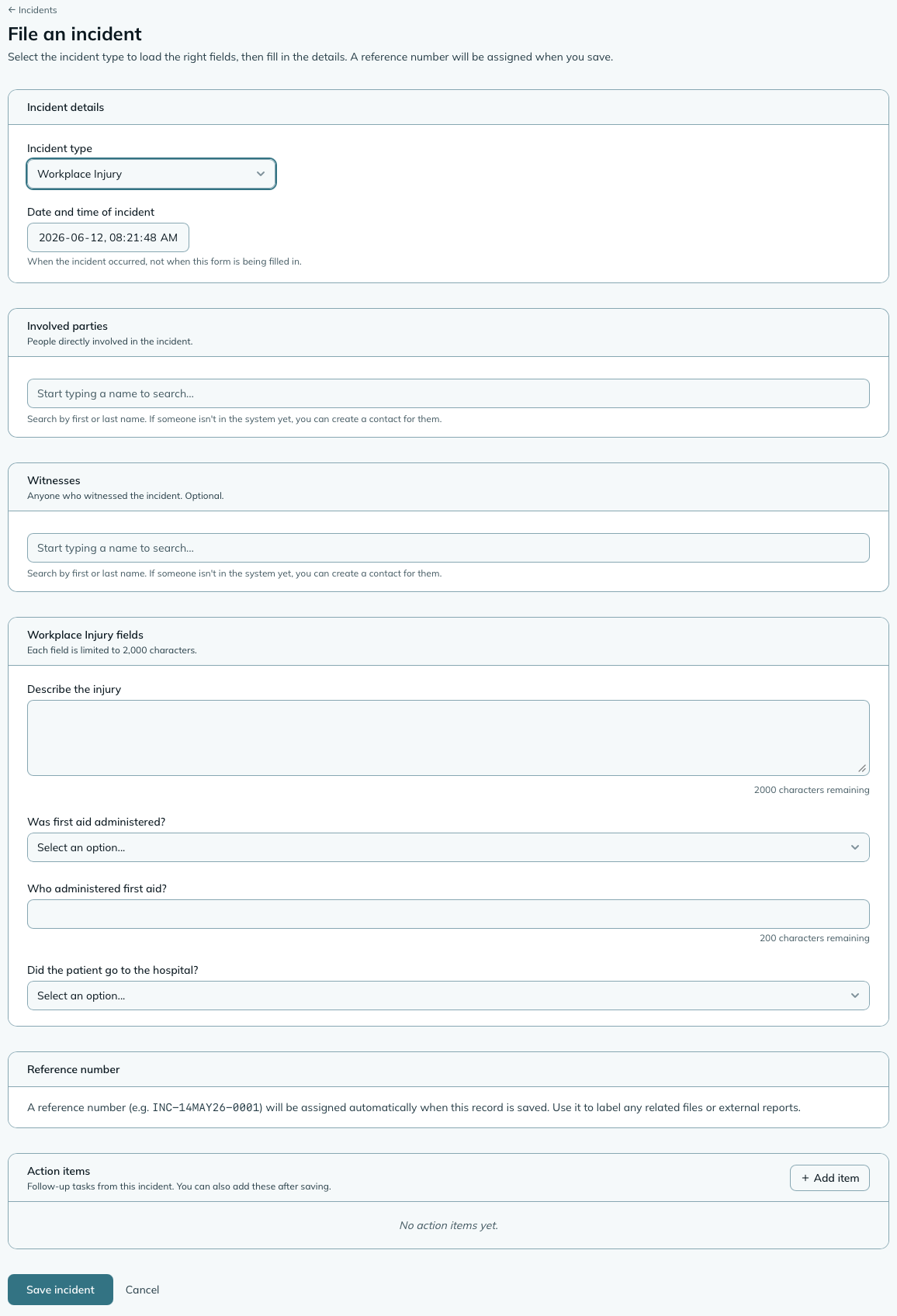
- Go to Sidebar → Incidents.
- Click File incident.
- Choose an incident type. The custom fields on the form change based on the type you pick.
- Set the Date and time the incident occurred - this is different from when you’re filing it, and it matters for the record.
- Add participants: the people involved in the incident and any witnesses. You can add employees from your directory or external contacts.
- Fill in the type’s custom fields. These are the actual account of what happened.
- Add any action items needed as follow-up.
- Click Save incident.
mizuiro shows you the reference number (INC-DDMMMYY-XXXX) after saving. Copy it somewhere
handy if you’ll be referencing it in other communications.
TipThis form autosaves a draft as you type, so a closed window won’t lose what you’d written. Open it again and you’ll be offered the draft back.
mizuiro creates eight incident types for you when your company is first created, so they’re ready to use as soon as you enable the module:
- Workplace injury
- Near miss
- Property damage
- Theft
- Security incident
- Policy violation
- Conflict / harassment
- Other
Every type includes three common fields: a description of what occurred (required), root causes, and corrective actions taken. Beyond those, each type has its own set of questions appropriate to that kind of event.
You can create your own types and archive any you don’t need at Settings → Incidents → Incident types.
Open incidents show their current status - open or under review - and you can update the status or edit the record as the situation develops.
Every change is logged automatically in the incident’s audit trail. You don’t have to remember to note that you updated something; mizuiro does it. The trail records who made the change, when, and what changed. You can’t edit or delete audit entries.
WarningThe audit trail is permanent. Audit entries are written once and never modified, even by a manager. This is intentional: the record of what happened to a record is as important as the record itself.
At the bottom of any open incident, you can add action items: specific follow-ups assigned to a person with an optional due date.
If an action item is small, mark it done right there. If it needs real tracking, convert it to a Task with one click.
Action item or Task - what’s the difference?
- An action item lives inside the incident. It’s a lightweight follow-up you jot down while documenting what happened - “call the supplier,” “review the footage.” You handle it right on the incident and tick it off when it’s done. It never leaves the incident.
- A Task is a first-class to-do in the Tasks module. It shows up in the assignee’s task list and widgets, has its own due date and lifecycle, and can be reassigned. Convert an action item to a Task when it’s real work someone needs to see alongside everything else on their plate rather than a note tucked inside one incident.
On the incidents list, an incident with open follow-ups shows a small chip so nothing gets lost: “N pending actions” for ones being handled in place, and “N pending tasks” (in the accent colour) for ones you’ve converted to Tasks that are still open. An incident can show both - a converted item counts as a pending task, not an action, which is why the two chips are separate.
A new incident starts as Open. Once someone starts actually looking into it, open the incident and click Mark under review. The status changes to Under review, which tells everyone at a glance that it’s being worked rather than sitting in the list. Managers and supervisors can do this; it’s the same access as resolving.
Marked one by mistake? Click Back to open to undo it. Moving between Open and Under review is freely reversible, and like every status change it’s recorded in the audit trail.
“Re-check in 30 days” has a home: on any unresolved incident, Set a follow-up takes a date and a note about what to check (“confirm the guard rail was replaced”). It shows as a banner on the record, red once the date is past, and as a chip on the incidents list. On the morning the date arrives, whoever set it gets an email with the note, if When an incident’s follow-up date arrives is on at Settings → Notifications. One email per date; moving the date sends another when the new one lands. Resolving the incident clears the nudge.
When the situation is settled, click Resolve. Resolving locks the record: the narrative, participants, action items, and audit trail all become read-only. No further edits are possible.
Only a manager can reopen a resolved incident. If you resolve something too early or need to add information, ask your manager to reopen it.
WarningResolving is not the same as closing. Once resolved, the record is locked. If the incident is connected to a PIP or legal matter, make sure the record is complete before you resolve it.
The Incidents list has filter tabs for All, Open, Under review, and Resolved, plus a type
filter if you need to narrow by incident category. The reference number (INC-DDMMMYY-XXXX)
on every record pastes anywhere and jumps straight to the record.
Settings → Incidents has two areas: the module-level settings and the incident types manager.
Whose incidents can supervisors see?
Only shown when supervisors look after their own teams (assigned scope). Off by default: a supervisor sees and works on the incidents they filed. Turn it on and they also see and work on every incident someone on their team is involved in, whoever filed it. Handy when two supervisors share a team, or when a new one takes over and needs the history.
Widget colour
Sets the accent colour for Incidents dashboard widgets. Cosmetic only.
Incident types
Where you create, edit, and archive the types available when filing an incident. Each type has a name, a description, and a set of custom fields. You can define fields as text areas, single-line text, or dropdowns with up to twelve options.
You can’t delete a type that has existing incidents, but you can archive it. Archived types stop appearing when filing new incidents; existing records that used that type are unaffected.
Incidents includes two dashboard widgets.
| Widget | Size | What it shows |
|---|---|---|
| Recent Incidents | 2x2 | The last five incidents from the past 30 days, with status badges, reference numbers, and a count of open incidents in the corner. |
| Open Incident Actions | 1x1 | A count of unresolved action items on open or under-review incidents. Shows a checkmark when there are none, an amber count when there are. |
Can an employee see an incident they were involved in?
No. Employees never see incident records, regardless of whether they’re listed as a participant. In assigned scope, supervisors see the incidents they filed themselves, plus every incident someone on their team is involved in if you turn that on in settings; in shared scope they see every incident. Managers (and HR) always see them all.
Can I add someone outside the company as a participant?
Yes. The participant picker searches both your employee directory and your Contacts. If a contractor, visitor, or client was involved, add them as a contact first and then include them here.
What’s the difference between “involved” and “witness”?
It’s a role distinction for clarity in the record. An involved participant was a party to the incident. A witness was present but not directly involved. Both show up on the incident record with a label so the distinction is clear if someone reviews it later.
How do I move an incident to Under review?
Open the incident and click Mark under review. It moves from Open to Under review so everyone can see it’s being actively worked. Managers and supervisors can do this. If you marked it by mistake, click Back to open to undo it.
What happens if I resolve an incident by mistake?
Ask your manager to reopen it. Only managers can reopen a resolved incident. Once reopened, it goes back to open status and you can edit it again.
Can I see incidents on an employee’s profile?
Yes. The employee profile page includes an Incidents tab for managers and supervisors that lists incidents where that person appears as a participant. Each entry shows the reference number, type, date, and their role (involved or witness).
NoteHow to read this: ✓ can see it, ✗ can’t, ○ depends on a setting or condition (explained under the table). As a manager, you always see everything in your company.
| What | You (manager) | Supervisor | Employee |
|---|---|---|---|
| Incident records | ✓ | ○ | ✗ |
| Action items | ✓ | ○ | ✗ |
| Custom field responses | ✓ | ○ | ✗ |
| File / edit / resolve | ✓ | ○ | ✗ |
- ○ Supervisor: in shared scope, supervisors see every incident in the company. In assigned scope, supervisors see only incidents they personally filed.
- ✗ Employee: incidents are never visible to employees, even ones they were involved in.