Your dashboard
The dashboard is your home screen in mizuiro. It is a canvas of widgets, each one pulling a live summary from one of your enabled modules. You see the same dashboard every time you sign in, and every person on your team sees their own version of it, scoped to what they are allowed to see.
The left-hand menu is your modules: People, Teams, Contacts, then whatever your company has switched on (Tasks, Presence, Minutes, and so on). Star the ones you use most (the star appears on hover) and they float to the top; see Favourites.
The bell in the top-right is your notifications: everything your company has switched on at Settings → Notifications lands there as well as in your email (a task assigned to you, a request waiting on you, a policy to acknowledge). The number is what’s unread; click a row to go to the thing it’s about, or Mark all read. If the bell never lights up, notifications are off for your company; that’s the manager’s call, not a fault.
Everything about you or about the company lives under your name in the top-right corner. Click it and you’ll see:
- Admin (managers only): people, sessions, and account administration.
- Settings (managers only): company details, modules, security, and the per-module settings pages.
- My preferences (everyone): your display name, theme, layout, and the small personal toggles like the login quote and birthday confetti.
So when these docs say Settings → Tasks, that means your name → Settings → Tasks in the settings menu.
Each widget is a small card that shows a summary from one part of mizuiro. A task widget shows your open tasks. An incident widget shows a count of open incidents. A presence widget shows who is in the office today. The same widget often shows different content to different people: a manager’s “Overdue Tasks” widget shows a company-wide count; a supervisor’s shows their team’s count; an employee’s shows only their own.
Widgets don’t duplicate the full pages they summarize. They are entry points: a glance that tells you whether you need to go look at the full page or whether things are fine.
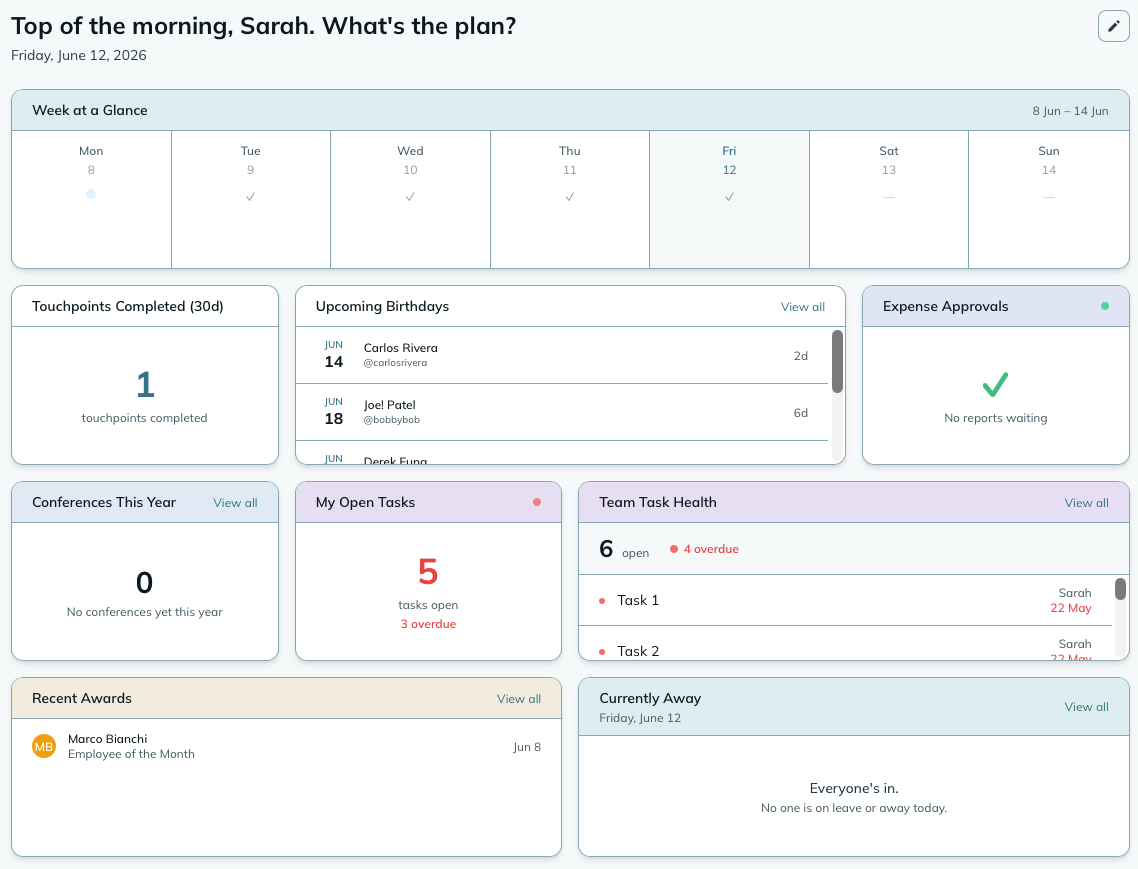
Each person on your team manages their own widget canvas. You can only add widgets from modules that are enabled for your company.
To add a widget:
- Click Add widget in the top right of the dashboard.
- Browse the available widgets by module.
- Click any widget to add it to your canvas.
To remove a widget, click the remove button that appears in the top corner of the widget when you’re in edit mode.
WarningWidgets from a disabled module disappear. If a manager turns off a module (for example, Presence), every widget from that module vanishes from every team member’s dashboard. When the module is re-enabled, the widgets come back exactly as they were. Nothing is lost, they just hide while the module is off.
Your dashboard is drag-and-drop. To move a widget:
- Hover over the widget you want to move.
- Grab the drag handle that appears at the top of the widget (the grip icon).
- Drag it to its new position and release.
mizuiro saves the new order automatically.
Each module has a colour setting in its own settings page that sets the accent colour on its widget headers. This makes it easier to recognize widgets from the same module at a glance when you have a busy dashboard.
To change the colour for a module’s widgets:
- Click your name (top right), then Settings.
- Select the module (for example, Tasks).
- Find the Widget colour setting and select a colour.
- Click Save.
The change applies to that module’s widgets for everyone on your team.
NoteWidget colours are set once for your whole company, so everyone sees the same accent on the same module. This is intentional: if every person picked their own colours, a shared screenshot or a quick “look at your Tasks widget” instruction would mean something different for each of you. One company-wide palette keeps the visual language consistent.
You can enable a subtle drop shadow on all your widgets to help them stand out from the page background. This is a personal preference: each person on your team can have it on or off independently.
To toggle drop shadows:
- Look for the shadow toggle in the dashboard controls (the toggle appears in the edit mode toolbar at the top of the dashboard).
- Turn it on or off. mizuiro saves the preference immediately.
Some dashboard controls are visible only to managers and supervisors:
- Edit mode (drag handles, remove buttons) is available to everyone. All users can add, remove, and rearrange their own widgets.
- Widget colours are set by a manager in module settings.
Employees always see a version of the dashboard appropriate to their role. They can add any widget from an enabled module and remove any widget they have added.
Why can’t I see a widget I expected to find?
Most likely the module it belongs to isn’t enabled for your company. Ask your manager to check Settings → Modules and confirm the module is turned on.
A widget disappeared from my dashboard.
The most common reason is that the module it belongs to was disabled. When the module is re-enabled, the widget will return exactly as it was without you needing to re-add it.
Can I reset my dashboard to the default layout?
Not with a single button today. You can remove all your current widgets and re-add them using the defaults as a guide. Each module’s documentation lists which widgets are on by default.
My dashboard looks different from my colleague’s.
Expected. Each person’s dashboard shows content scoped to their role, and each person chooses their own widget arrangement. A manager’s “Overdue Tasks” count will almost always differ from a supervisor’s, which will differ from an employee’s.