
Tasks
The Tasks module is mizuiro’s tool for the kind of work that doesn’t get done in one sitting. It’s built for assignments that take days or weeks, where you’ll want to check in along the way to see how things are progressing, and where having a record of those conversations will matter later.
- Who can use it: everyone. Managers and supervisors create tasks and log check-ins; the assignee carries out the work and can resolve it themselves when done.
- Where: Sidebar → Tasks.
- Default: off. Enable it at Settings → Modules.
Tasks earn their keep for anything that needs to land on someone’s plate, sit there for a while, and not get forgotten during the wait. The kind of assignment where you’ll want to touch base a week from now, and where you’ll be glad you wrote that down.
Things that fit Tasks well:
- A medium-term project for someone on your team where you expect to check in periodically and want a record of how those conversations went.
- A complex action item from a touchpoint or incident that’s going to take more than an afternoon, where a paper trail matters.
- Any commitment to follow up on that benefits from separate check-in notes rather than just a done or not-done result.
Things that probably don’t:
- A quick note to yourself about tomorrow. That’s what your to-do list is for, private, one line, tick it off.
- A quick “take care of this small thing” that comes out of a touchpoint or an incident. Both of those modules include a lightweight action item list of their own, and that’s where this kind of work belongs. Tasks is overkill for it.
WarningDon’t store sensitive personal information in the Detail field. Tasks are visible to the person who assigned them, the assignee, and managers. If you need to track something private about a person, that belongs in the Performance module or in Kikubari, not in a task.
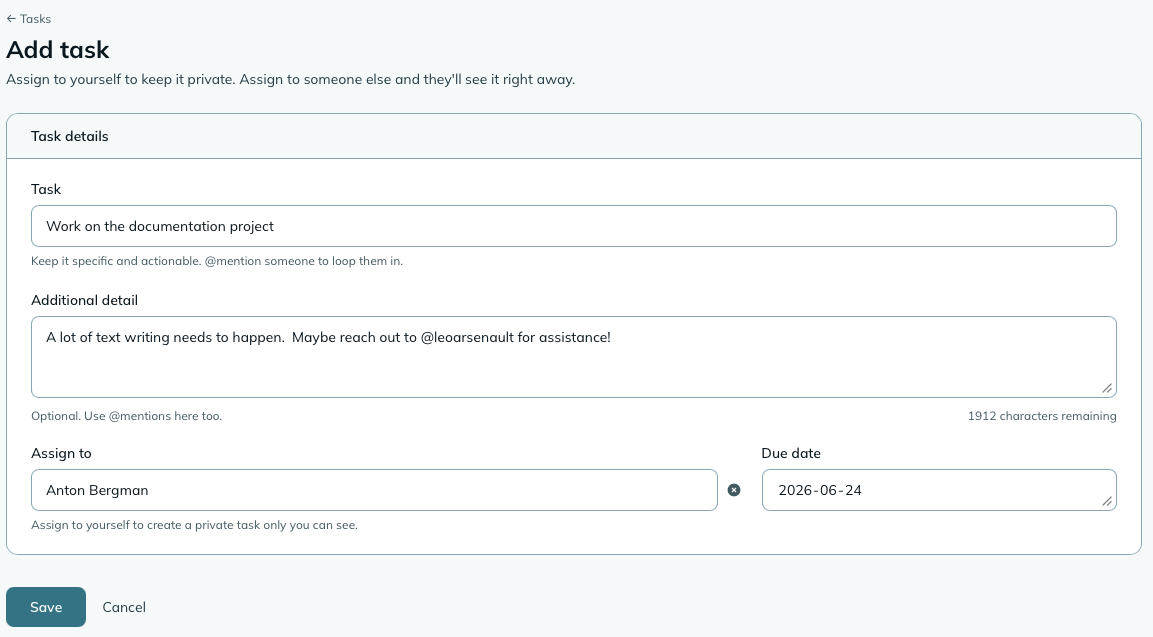
- Go to Sidebar → Tasks.
- Click Add task in the top right.
- Fill in:
- Title: a short description of what needs to happen.
You can mention people with
@nameand topics with#tag, both are searchable later. - Assignee: who is doing the work.
- Due date: required. If you don’t know yet, set it for two weeks out and adjust later.
- Priority: Low, Medium, or High. Defaults to Medium. It shows as a sortable column on the task list (click the Priority heading to bring the urgent ones to the top) and feeds the Open Tasks by Priority dashboard widget.
- Detail: optional context, links, anything useful. Note that an employee assignee doesn’t see this field (see What the assignee sees below); a supervisor or manager assignee does.
- Title: a short description of what needs to happen.
You can mention people with
- Click Save. The assignee gets a notification and the task shows up on their list.
This is the part Tasks exists for: keeping a record of how the work is progressing without having to remember the conversations yourself.
On any open task, you’ll see an Add a check-in box on the task page (the button reads Add update). Each check-in becomes a timestamped entry in the task’s activity log. Use it for:
- A summary of a status conversation. “Talked through where they’re stuck; they’ll circle back next week with options.”
- A note that the due date needs adjusting and why.
- Anything you’d otherwise write on a sticky note to remember what was said.
You can also note how the check-in happened (email, chat, phone, in person, or a virtual meeting) with the dropdown next to the check-in box. It’s optional, but it’s handy later when you’re looking back and want to remember whether that update came from a hallway chat or a formal sit-down.
WarningCheck-ins are visible only to managers and supervisors. The assignee doesn’t see the check-in activity log when they open the task. They see the title, instructions, due date, and who assigned it, plus a button to resolve the task. They don’t see your notes about the conversations you had about their work. This is intentional: check-ins are your record of how you’re managing the work, not a public commentary visible to the person being managed.
If the timeline shifts, you can move a task’s due date without editing the task directly. Open the task and click Change due date, enter the new date and a brief note explaining the change, then save. The change is recorded as a timestamped entry in the task’s activity log, so there’s always a clear record of when the deadline moved and why, separate from your regular check-in notes.
Some work comes back on a schedule: the weekly timesheet, the monthly inventory count, the annual insurance renewal. When you create a task, choose a Repeat option: daily (with a weekdays only toggle, on by default), weekly, monthly, or yearly, an every N (2 for every second week, 3 for quarterly, and so on), and an optional until date. The due date you set is the first one and fixes the pattern: the weekday for weekly, the day of the month for monthly, the date for yearly.
Recurring tasks work differently from recurring meetings, on purpose:
- One open copy at a time. Instead of filling your list with weeks of future copies, the next one appears the morning after the current one’s due date passes, whether or not it was resolved. If last week’s is still open, this week’s shows up beside it and last week’s goes overdue on its own, which is the honest picture. Finishing early doesn’t bring the next one forward.
- Due dates move off closures and weekends. A task that would fall due on a company closure (or a weekend, for a weekday-only rule) is due the next working day instead of being skipped: it still has to be done, just not that day.
- Only the first copy emails the assignee. They were assigned that one; the rest just appear, so a daily task isn’t a daily email. The overdue email still applies to each copy.
Every copy is an ordinary task, with its own check-ins, reference number, and project. Each carries a “Recurring” line; managers and the person who set the rule up get a link back to it. Edit task on one of them asks which you mean - just that task, or the rule behind it. To change the rule (title, who it goes to, cadence, until) or to pause, resume, or end it, open Recurring at the top of the Tasks page. Changes apply from the next copy onward; the current one is left as it is, and ending a rule never deletes a task.
The morning after a task’s due date passes with it still open, mizuiro can email the person it’s assigned to and the person who assigned it (if that’s someone else). It’s one email per task, not a daily nag, and it’s off until a manager turns on When a task goes overdue at Settings → Notifications. Tasks you assign to yourself never trigger it: you already know. Resolving the task or extending its due date is the fix, both from the task page.
The assignee, the person who created the task, and any manager can all resolve a task. It doesn’t require a manager to sign off. When the work is done, the person who did it can close it.
To resolve:
- Click Resolve on the task page.
- Write a closing comment summarizing the outcome.
- Click Resolve task.
The closing comment becomes the final entry in the task’s history.
WarningThe closing comment is visible to everyone who can see the task, including the assignee. Don’t write anything in it you wouldn’t want the assignee to read. If the outcome involved something sensitive, keep the comment factual and short and put the detail somewhere more appropriate.
Worth understanding clearly, because it shapes how you can use check-ins.
When an employee opens a task assigned to them, they see:
- The task title and due date.
- A Resolve button if the task is still open.
They don’t see:
- The Detail / instructions field.
- Who assigned it.
- The check-in activity log, reassignment notes, or due-date changes.
A supervisor or manager who is the assignee sees the full management view.
Three things help:
- Search in the top right matches task titles (and people named on the task).
- Reference number (the
TSK-DDMMMYY-XXXXon every task) pastes anywhere to jump straight there. - Topic pages: if you tagged the task with
#bellmodemwhen you created it, every record with that tag is grouped on its topic page under Sidebar → Topics.
When several tasks are part of one larger effort, a bell modem rollout, a site migration, an audit, you can bundle them under a project and see them together.
- Where: Projects in the left-hand menu, right under Tasks (managers and supervisors only, employees just see their own tasks). There’s a Projects button at the top of the Tasks page too.
- Make one: click Add project, give it a name, an optional
description, an optional owner, and an optional target date.
Each project gets its own reference number
(
PRJ-...), so you can quote it or paste it into search to jump straight there. - Owner: who’s running it. A manager or a supervisor. Optional, but worth setting: the owner is who the target-date nudge goes to, and the project turns up under their Mine tab. With nobody set, the nudge goes to whoever created the project. If the owner leaves or changes role they stay the owner until you pick someone else; saving other changes to the project won’t clear them.
- Status: Not started, Active, On hold, Done, or Archived. The first three all count as still going, so their target dates still matter and they still take new tasks. Done means finished; Archived means filed away without finishing. Either way the tasks stay put.
- Target date: when the whole effort should be done. If a task in the project is due after that date, you’ll see a warning as you set the date on the task form, an “after target” pill on the task, and a count at the top of the project page. It’s a heads-up, never a block: sometimes the task really does land later, and now you know.
- Minutes: if you use Minutes, you can file a meeting under a project from the minutes form. The project page lists them, and any action items you add from those minutes land in the project automatically.
- Add tasks to it: click Add task on the project page and the task form opens with the project already picked. Or pick the project from the Project dropdown on any task form. A task belongs to at most one project, or none.
- See progress: each project page lists every task in it that you’re allowed to see, with a “resolved / total” read so you can tell at a glance how close it is to done.
- Updates: a short dated note on the project page for where things stand, in the project’s own words. Markdown, like every other freeform field. Whoever wrote one can remove it, and so can a manager; there’s no edit, because a note is a point in time. Better than burying “waiting on the vendor” in a task comment.
- Finding one: the list opens on everything still going. Tabs narrow
it to Mine, Overdue, or a single status, and you can search by
name or paste a
PRJ-reference. Sort by name, target date, or when it was added. - From the other direction: the Tasks list has a Project filter, and a person’s Tasks tab on their profile says which projects their open work belongs to.
Knowing a target date is coming. Nobody is assigned a project the way they’re assigned a task, so nothing would otherwise mention one again. Turn on Before a project’s target date (at Settings → Notifications, off by default like every other notification) and the owner gets one message ahead of the date (a week by default) and one the morning after it passes. Move the target and you get both again for the new date. There’s also a Projects at Risk dashboard widget listing what’s past target or due inside that same window.
Projects are lightweight by design: a way to group and track, not a full project-management tool: no dependencies, milestones, or Gantt charts. Removing a project keeps its tasks; they simply become ungrouped again.
Tasks includes these settings, all at Settings → Tasks.
When to nudge about a task and When to nudge about a project
How far ahead the “task is due” and “project target” messages go out. Tasks: the day before (the default), 2 or 3 days, or a week. Projects: 3 days, a week (the default) or two weeks; the Projects at Risk widget uses the same window. The messages themselves are switched on or off on the Notifications page.
Who can assign tasks
Controls whether supervisors can create and assign tasks, or whether only managers can. Defaults to both, which fits most teams. Change it to managers only if you want stricter control over what goes onto people’s plates.
Widget colour
Sets the accent colour used on the Tasks dashboard widgets so they’re easy to recognize at a glance. Defaults to mizuiro’s teal. Pick whatever fits your dashboard; the choice doesn’t affect anything beyond the widget headers.
Tasks includes four dashboard widgets. Each shows different content depending on the viewer’s role; the visibility scope is the same one that governs the tasks list itself.
| Widget | Size | Manager sees | Supervisor sees | Employee sees |
|---|---|---|---|---|
| My Open Tasks | 1x1 | Their own open tasks | Their own open tasks | Their own open tasks |
| Overdue Tasks | 1x1 | Count across the whole company | Count for their team | Count for themselves |
| Team Task Health | 2x2 | All assignees with open tasks, grouped by person, overdue items highlighted | Their team’s assignees grouped by person | A flat list of their own open tasks |
| Open Tasks by Priority | 2x1 | High / Medium / Low breakdown across the company, as bars | The same breakdown for their team | The same breakdown for their own tasks |
| Projects at Risk | 2x1 | Projects past their target date or due inside a week | The same, for projects they can see | No access (projects are a manager/supervisor area) |
The first three are on by default for a new company; Open Tasks by Priority and Projects at Risk are opt-in. Each user can choose which ones appear on their dashboard from the Add widget button on the dashboard canvas.
Can my employee see my check-in notes?
No. The check-in activity log is visible only to managers and supervisors. An employee assignee sees the title, the due date, and the closing comment once it’s resolved, but not the running commentary between those two points.
Can an employee resolve their own task?
Yes. The assignee, the person who created the task, and any manager can all resolve it. Whoever resolves it writes the closing comment.
Can I assign a task to a contact?
No. Tasks can only be assigned to people in your directory
(managers, supervisors, employees). You can @mention a
contact in the title or detail to reference them.
What happens when an assignee leaves the company?
When you mark someone terminated, retired or suspended and they have open tasks from other people, mizuiro asks who should take them over before completing the status change. Everything goes to the person you pick, including any recurring tasks set up for the person leaving, so the work keeps coming round.
A recurring task whose assignee has left (or was never handed on) stops creating copies. Its page says why, with a link to give it to someone else. Nobody who has left or is suspended is emailed about tasks, projects, or anything else.
Can I set a task to repeat?
Yes. Pick a Repeat option when you create the task; see recurring tasks. To change or stop an existing one, open Recurring at the top of the Tasks page.
NoteHow to read this: ✓ can see it, ✗ can’t. As a manager, you always see everything in your company.
| What | You (manager) | Supervisor | Employee |
|---|---|---|---|
| Tasks across the company | ✓ | ✓ (team only) | ✗ |
| Tasks assigned to them | ✓ | ✓ | ✓ |
| Self-assigned tasks | ✓ (own only) | ✓ (own only) | ✓ (own only) |
| Task detail/instructions | ✓ | ✓ | ✗ |
| Activity log and check-ins | ✓ | ✓ | ✗ |
| Create / edit / reassign | ✓ | ○ | ✗ |
| Mark resolved | ✓ | ✓ | ✓ (own only) |
- Supervisor: supervisors see tasks they assigned, tasks assigned to them, and tasks involving their team members. This is always team-based, regardless of your company’s supervisor scope setting. Whether supervisors can create tasks is a Tasks module setting.
- Employee: employees see only tasks assigned to them. They get a simplified view: title, due date, status, and the ability to mark a task resolved. They do not see the detail/instructions field, the activity log, who assigned the task, or check-in updates.
- Self-assigned tasks are private. A task where the assignee and assigner are the same person is visible only to that person, regardless of tier. You cannot see other people’s self-assigned tasks.