
Performance
The Performance module covers the full range of formal performance management: scheduled reviews, documented concerns, performance improvement plans, written warnings, and probation tracking. The areas are designed to connect: concerns, incidents and warnings feed into PIPs as supporting evidence, and PIPs can trigger probation.
- Who can use it: managers and supervisors create and manage performance records. HR have the same company-wide access here that a manager does. Employees have no access to this module unless you explicitly share a review with them.
- Where: Sidebar → Performance. The module has five sub-tabs: Reviews, Concerns, PIPs, Warnings, and Probation.
- Default: off. Enable it at Settings → Modules.
Performance earns its keep in two situations. The first is the routine kind: scheduling annual or semi-annual reviews, keeping a structured record of how conversations went, and building a history over time. The second is the harder kind: when something is going wrong and you need documentation that will hold up later.
The four areas of the module map to those two situations. Reviews are for the routine. Concerns, PIPs, and warnings are for when you need to put something on file and track whether it improves.
Performance reviews follow a structured lifecycle: draft, scheduled, in progress, completed, and acknowledged. You move a review through each stage yourself, and once it’s completed it locks.
To create a review:
- Go to Sidebar → Performance → Reviews.
- Click Add review.
- Select the employee and the review template.
- Set the review period (start and end dates) and the scheduled date.
- Click Save to create it as a draft.
From there, you can schedule it, mark it as in progress when the meeting starts, and complete it when you’re done. When you click Complete review you can add close-out notes: your private wrap-up, encrypted and only visible to you and the manager. Once a review is under way it can’t be rescheduled.
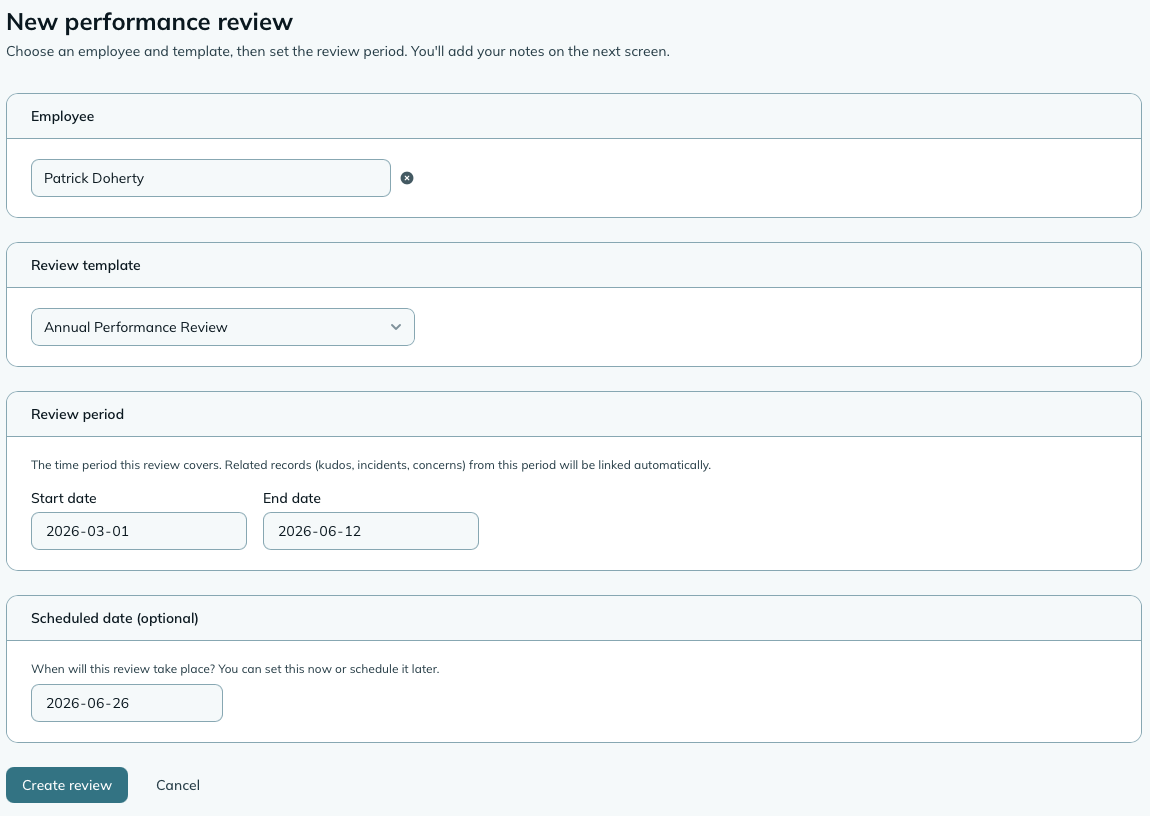
TipThis form autosaves a draft as you type, so a closed window won’t lose what you’d written. Open it again and you’ll be offered the draft back.
By default, reviews are private to you and the manager. If you want the employee to see the completed review, you can share it with a single click from the review page. Once shared, the employee can view it on their profile’s Performance tab.
You can unshare it later if needed. Sharing and unsharing don’t affect the review’s locked state.
Turn on When a review is shared with the employee at Settings → Notifications (off by default) and they get told it’s there instead of having to notice it. Its companion, When an employee acknowledges something, tells whoever is waiting - the person who ran the review, or issued the warning, plus the manager - when an acknowledgement is recorded. Nobody is told about their own click, so marking a review acknowledged yourself doesn’t email you.
If the employee doesn’t sign in to mizuiro, or you’d rather hand over a copy, use Export as PDF on a completed review. It carries the review particulars, each question with your notes and the employee’s comments, and an acknowledgement line. Your close-out notes are never included: they’re your private wrap-up, and the PDF is the employee’s copy.
Templates define the structure of your review forms - the sections and questions that appear when you’re filling one in. mizuiro creates a default template when you first open the settings page. You can edit it, create additional templates, and choose the right one at scheduling time.
Manage templates at Settings → Performance → Review templates.
NoteA template that has been used on existing reviews cannot be deleted, since those reviews depend on it for rendering. If a template is no longer needed, archive it instead from the template list. Archived templates stop appearing when scheduling new reviews but existing ones are unaffected.
A performance concern is a documented issue on an employee’s file. It captures what happened, how serious it was, what actions were taken, and when it was discussed with the employee.
NoteConcerns are internal. A concern is a gentle “I noticed something” record for the manager and supervisors, the kind of thing a private word usually resolves. It is never shown to the employee in mizuiro. If something is serious enough that the employee needs a formal notice, that’s a written warning, not a concern.
Concerns are permanent records. Once created, they can’t be deleted. If a concern was recorded in error, contact the manager.
- Go to Sidebar → Performance → Concerns.
- Click Record concern.
- Select the employee and the date the incident occurred.
- Set the severity level: minor, moderate, serious, or critical.
- Fill in the observation (what happened) and any actions taken.
- Optionally note the date you discussed it with the employee.
- Click Save.
WarningConcerns are permanent. There is no delete option. If the severity or date is wrong, you can edit those fields, but the record itself stays on file indefinitely - or until the sunset clause applies, if you have that enabled.
If your company has the sunset clause enabled, concerns automatically become inactive after a set number of days pass without a new concern being recorded for that employee. This is common in unionized workplaces where collective agreements specify that old concerns can’t be used against someone after a clean period.
Sunsetted concerns stay visible as historical records but can no longer be linked to new PIPs or used as evidence. They show a “Sunsetted” badge in the list.
Turn this on at Settings → Performance → Concern sunset clause.
An open concern says when it will sunset. The record and the list show “sunsets on
Resolve now. When it’s dealt with before the clause lands, a manager clicks Resolve now and writes a line about how it was resolved. The concern closes today, reads Resolved rather than Sunsetted, and stops counting from that moment. Same rules afterwards: kept on file, can’t be linked to a new PIP.
A PIP is a formal documented plan for an employee who needs to improve in specific areas. It includes what the problems are, what’s expected instead, a timeline, and an outcome when the plan period ends. A PIP is the last-resort tool for a history of undesirable behaviour that gentler steps haven’t fixed. An employee can have only one active plan at a time - mizuiro won’t let you open a second while one is still running, so new concerns or warnings that come up meanwhile get added to the existing plan rather than spawning another.
- Go to Sidebar → Performance → PIPs.
- Click Add PIP.
- Select the employee and set the start date and target end date.
- Add deficiencies: each one is an observation (what’s happening) paired with an expectation (what needs to happen instead). You can add as many as you need.
- Optionally link existing concerns, incidents, or written warnings as supporting evidence. Pick whatever is relevant, in any combination - nothing is required or attached automatically.
- Optionally attach a review template for check-in meetings during the plan.
- Click Save.
As the plan runs, you can edit it to link newer concerns or warnings that have come up since it started - evidence that the behaviour still isn’t being corrected.
The edit page lists records from a recent window (90 days by default; change it with Show records from the last), plus everything already linked, however old. A link only comes off when you untick it: a concern that’s been sunsetted since, or one recorded by someone whose records you can’t see, stays linked when you save.
The PIP starts as a draft. When you’re ready to formally activate it, click Activate on the PIP page. Activating is the point the plan is communicated, so nothing reaches the employee while it’s still a draft. If you’ve turned on the “when an improvement plan is started” email in Notifications, the employee gets a supportive heads-up at that moment - a plan has been started, with a reference number, and their manager will walk them through the details. It’s off by default, so you’re never emailing anyone by accident.
An employee always needs to be made aware of their plan. If your team doesn’t use email notifications, or employees don’t sign in to mizuiro, use Export as PDF on the plan page: it produces a clean, one-page copy of the plan - particulars, objectives, the areas to improve, and a signature line - that you can send them yourself (corporate email, print) and have them acknowledge. Linked evidence and your summary notes are never part of it.
When a PIP period ends, you complete it with one of three outcomes:
- Successful - the employee met the expectations. No employment status change.
- Extended - the timeline needs more time. The plan continues.
- Unsuccessful - the employee did not meet the expectations. You then choose a follow-on action: no further action, move to probation, or terminate.
WarningCompleting a PIP with an unsuccessful outcome and a termination action changes the employee’s status immediately. This is one of the few places in mizuiro where a form submission has a direct employment consequence. Make sure the outcome and action are correct before you click Complete.
Written warnings are formal notices issued to an employee. There are four levels: verbal, first written, second written, and final written.
NoteWarning vs. concern. A concern is a gentle, internal “I noticed something” note that a small course-correction usually fixes, and it’s never shown to the employee. A written warning is a formal notice that is delivered to the employee. A warning can stand on its own for something serious the first time it happens (say, yelling and swearing at a coworker), or it can follow a pattern of concerns that weren’t corrected. One doesn’t have to lead to the other.
To issue a warning:
- Go to Sidebar → Performance → Warnings.
- Click Record warning.
- Select the employee, the level, and the date issued.
- Fill in the details of the warning and any corrective action required.
- Click Save.
Because a written warning is a formal notice, the employee sees it in full in mizuiro: the level, the date, what it’s about, and the corrective action expected. If the “when a written warning is issued” notification is on, they’re also emailed the moment it’s issued (a link to view it, never the sensitive details themselves). They acknowledge receipt in mizuiro, which timestamps it, and can download their own PDF copy. Managers and supervisors can also mark a warning acknowledged manually and export the PDF to hand over out of band.
Once a warning has been acknowledged it can’t be edited: the employee signed for what it said. If something in it is wrong, issue a new one.
Warnings can be linked to a PIP as supporting evidence when one is created.
The Probation tab (the fifth tab in the module) shows everyone currently on probationary status, grouped into three buckets: past due (the probation period has ended but they haven’t been graduated yet), ending soon (within the next two weeks), and active.
Probation end dates can be set manually when you change someone’s status, or automatically when a PIP outcome triggers it. If auto-graduation is enabled, mizuiro moves people from probation to active status on their end date without you needing to do anything.
You can require an exit review before anyone graduates from probation. Turn on Require probation exit interview at Settings → Performance. When it’s on, mizuiro doesn’t auto-graduate on the end date. Instead it creates a draft performance review for the exit meeting, and the employee stays on probation until a manager conducts that review and graduates them manually.
That exit review is built from a review template, so you need one set up first:
- Create the template you want to use for exit interviews under Review templates in the Performance module (the same templates used for regular reviews).
- Back at Settings → Performance, choose it as the Exit review template.
WarningThe requirement only takes effect once a template is selected. If Require probation exit interview is on but no exit review template is chosen, mizuiro has nothing to build the review from, so it falls back to auto-graduating on the end date. Create and assign the template to actually gate graduation.
Manage probation settings at Settings → Performance.
All at Settings → Performance.
Review frequency
Annual, semi-annual, quarterly, or a custom number of months. mizuiro uses this as a default rhythm, not as a hard constraint. You can always schedule a review for any date.
Who can initiate reviews
Managers only (the default), or managers and supervisors. With managers only, supervisors don’t get Add review and can’t start one; with both, a supervisor can start reviews for the people on their teams.
Whose records can supervisors see?
Only shown when supervisors look after their own teams (assigned scope). Off by default: a supervisor sees and works on the reviews, concerns, improvement plans and warnings they wrote. Turn it on and they see and work on those records for everyone on their teams, whoever wrote them. Handy when two supervisors share a team, or when a new one takes over and needs the history. Private review close-out notes stay with whoever ran the review.
Review reminders live on the Notifications page rather than here: the “when a review is coming up” email to the employee, with the number of days before. Off by default.
Concern sunset clause and Warning sunset clause
Each enables the automatic sunset of stale records of that kind, with its own window in days (default 365 for both), so you can, say, sunset concerns after 90 days but keep warnings a year. Both off by default.
Probation settings
Default probation duration for new hires, whether auto-graduation is on, and whether an exit review is required before graduation. If exit reviews are required, mizuiro creates a draft review from your chosen template when a probation period ends, and the employee stays on probation until you complete and graduate them manually.
PIP preamble and consequences text
Custom text shown at the top of printed or exported PIP documents. Use these to match your company’s standard HR language.
Widget colour
Sets the accent colour for Performance dashboard widgets.
| Widget | Size | What it shows |
|---|---|---|
| Upcoming Reviews | 2x1 | Reviews scheduled in the next 14 days. |
| Overdue Reviews | 1x1 | Reviews past their scheduled date that aren’t completed yet. Shows an animated red dot when there are any. |
| Active PIPs | 1x1 | Count of PIPs currently in created, active, or under-review status. |
| Probation Due Soon | 1x1 | Employees on probation whose period ends within 14 days, including past-due. |
| Recent Warnings | 2x1 | Written warnings issued in the last 90 days, with level and acknowledgement status. |
| Unacknowledged Warnings | 1x1 | Count of warnings issued but not yet acknowledged. |
| Active Concerns | 1x1 | Count of performance concerns currently active. |
Can an employee see their own performance concerns or PIPs?
Concerns are never shown to employees. However, employees can see their own written warnings (in full, with an acknowledgement step) and the plan portion of a PIP once it has been communicated; they never see the linked evidence or manager notes. Reviews are only visible if you explicitly share them using the Share button on the review page.
Can I delete a performance concern?
No. Concerns are permanent records. You can edit the content, but the record stays on file. If your company has the sunset clause enabled, old concerns can become inactive automatically after a clean period, but they remain visible as historical records.
What happens when a PIP is completed with a termination outcome?
The employee’s status changes to terminated immediately when you complete the PIP. Make sure you’ve reviewed the outcome and action carefully before clicking Complete. There’s no undo for that action.
Can I have different review templates for different roles?
Yes. You can create multiple templates and choose the right one when scheduling each review. There’s no restriction on which templates can be used for which employees.
Can concerns be linked to a PIP after the PIP is already active?
Yes, as long as the concern hasn’t been sunsetted. Open the PIP and edit it to add or remove linked concerns and incidents while it’s active. A concern that’s already linked stays linked if it’s sunsetted later.
NoteHow to read this: ✓ can see it, ✗ can’t, ○ depends on a setting or condition (explained under the table). As a manager, you always see everything in your company.
| What | You (manager) | Supervisor | Employee |
|---|---|---|---|
| Performance reviews | ✓ | ○ | ○ |
| Review close-out notes | ✓ | ○ (reviewer only) | ✗ |
| Performance concerns | ✓ | ○ | ✗ |
| PIP: the plan (goals and expectations) | ✓ | ○ | ✓ (own only) |
| PIP: linked evidence and your notes | ✓ | ○ | ✗ |
| Written warnings | ✓ | ○ | ✓ (own only) |
| Probation status | ✓ | ○ | ✓ (own only) |
- ○ Supervisor (all rows): in shared scope, supervisors see all records. In assigned scope, supervisors see only records they personally created, conducted, or issued.
- ○ Employee (reviews): employees see their own reviews, but only after you explicitly share each one. Sharing is per-review, not a global setting.
- Review close-out notes: the reviewer’s private wrap-up. Visible to the supervisor who conducted the review and to managers, never to other supervisors (even in shared scope), never to the employee (sharing the review doesn’t share these), and left out of the exported PDF.
- ✓ Employee (PIP plan): once you activate a PIP, the employee can see the plan itself - the goals and what’s expected. They never see the linked concerns or incidents, or your private notes. Drafts are not visible to the employee.
- ✓ Employee (written warnings): a written warning is a formal notice, so the employee sees it in full, can download a PDF copy, and acknowledges it. Concerns, by contrast, are never shown to the employee.
- ✓ Employee (probation status): an employee can see their own current status (including “on probation”) on their profile, but none of the underlying performance records that led to it.
- ✗ Employee (concerns): employees cannot access performance concerns at all.