
Presence
Presence is a manual exception-based attendance tracker. The idea is simple: if nothing is recorded for someone, they were present and working as normal. You only log the exceptions - late arrivals, absences, sick days, remote work, and so on.
This keeps the overhead low. You’re not ticking boxes for everyone who showed up on time. You’re recording the things that actually matter.
- Who can use it: managers and supervisors log presence records; a supervisor logs for the people they look after (their own teams, or everyone in shared scope). HR log and view presence company-wide, like a manager. Employees don’t see the roster or anyone else’s presence, and don’t log their own records (apart from I’m remote today, if you turn it on).
- Where: Sidebar → Presence.
- Default: off. Enable it at Settings → Modules.
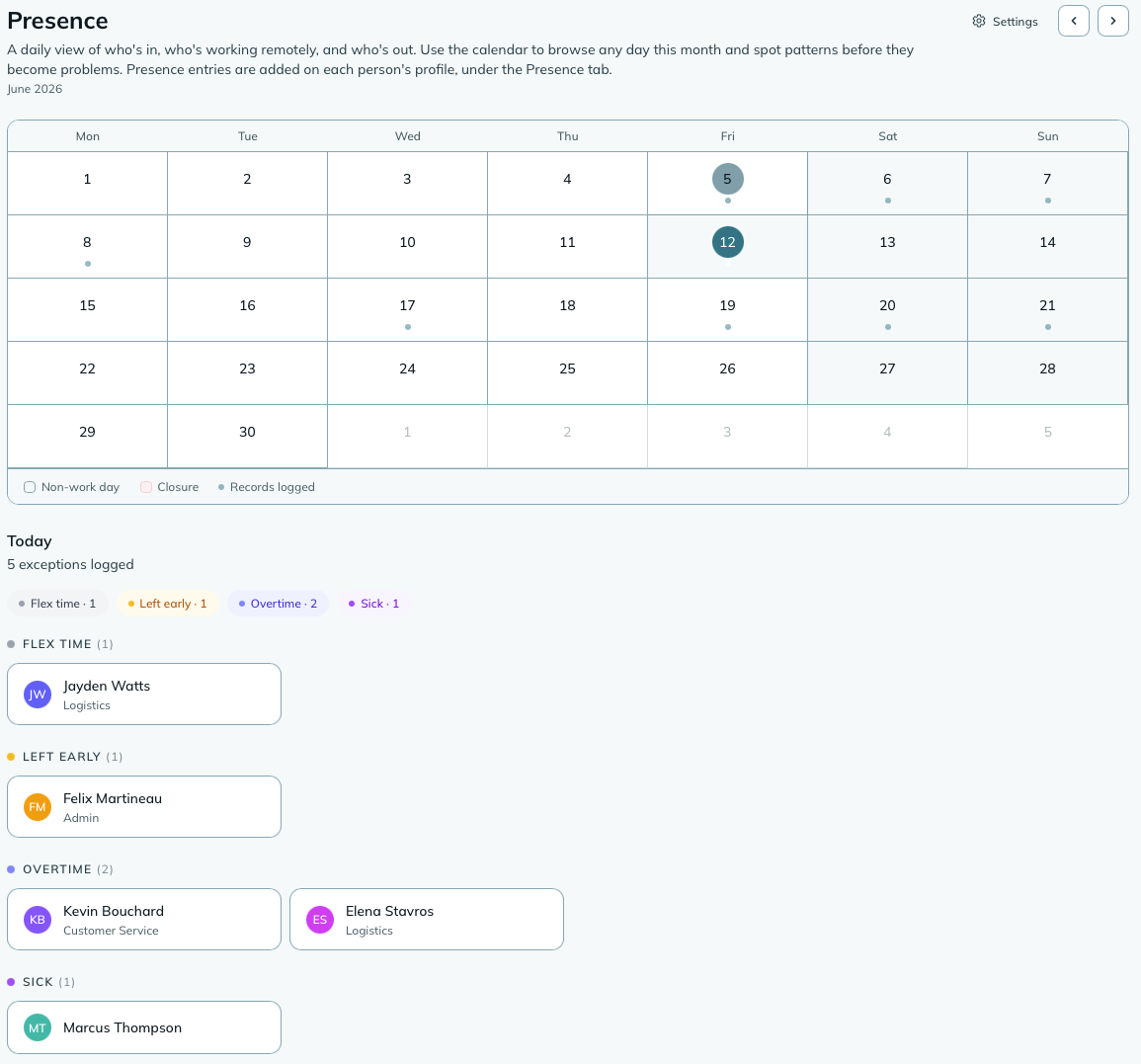
Sidebar → Presence opens the main calendar view. The left side shows a monthly calendar grid; clicking a day opens the roster for that day on the right, showing everyone on your team grouped by their presence type. Someone with two statuses that day (an appointment in the morning, sick in the afternoon) appears under both, marked AM or PM.
Only exceptions are listed: someone with no record for the day is presumed in and doesn’t appear (a day with nothing logged reads “Everyone’s in”). Everyone with a logged record shows their type and any notes.
| Type | When to use it |
|---|---|
| In late | Arrived after their scheduled start time. |
| Left early | Left before their scheduled end time. |
| Vacation | Approved annual leave or PTO. |
| Sick | Sick leave, paid or unpaid. |
| Overtime | Stayed beyond their scheduled end time. |
| No show | Didn’t arrive and gave no notice. |
| Remote | Working from home or another location. |
| Long break | Extended break beyond the normal allowance. |
| Flex time | Working outside their standard schedule. |
| Leave | A leave of absence, distinct from vacation. Counts as out of office. |
| On call | Available to be called in if needed. |
| On standby | Ready and reachable if needed. |
| Appointment | Out for part of the day: a dentist, the bank, a school pickup. |
| Bereavement | Away after a death in the family. Counts as out of office. |
| Lieu day | A day off earned by working extra. Counts as out of office. |
On call and On standby are a little different from the rest: they describe availability, so they sit alongside a normal status rather than replacing it. Someone can be marked on call for the day and, if they then phone in sick, carry both, the sick day and the on-call note show together. They’re never counted as time off.
You can log a record in two ways:
From the employee’s profile: open their profile, go to the Presence tab, and click any day on their personal calendar. A popover opens with every presence type as a toggle pill. Click the ones that apply (a coloured ring means selected), add a note if you want one, and click Save. The calendar updates immediately.
From the team roster: the Log presence button on the roster page logs one status for one person across a date range. The Log a range button on the employee’s Presence tab does the same for that person (a two-week holiday in one go, not fourteen clicks).
A day can carry several statuses. Someone can be in late and left early on the same day, or on call and sick. Open the day again to adjust the set: deselect a pill to remove that status, select another to add it, then Update. Clear day removes them all at once.
Half days. A whole day is the default, so there’s nothing to set for most entries. Tap AM or PM on a status when it only covers half the day, and tap it again to go back to a whole one. It shows as “Sick (AM)” or “Appointment (PM)” on the calendar. Each status has its own half, so a real day reads properly: an appointment in the morning, and going home sick after lunch. Pick the statuses first and a row appears for each one. (The note, unlike the half, is still one per day.)
Logging a range across days off. A range normally skips weekends, rest days and company closures: a week of vacation over a public holiday is four days, not five. Some statuses shouldn’t work that way, though. Being on call over a long weekend is one continuous stretch, not three entries you add by hand.
At Settings → Presence, under Logging a range, tick the statuses that should carry straight through. On call, on standby, seconded and leave start ticked; change the list to suit. This only affects logging a range - logging a single day always logs exactly the day you clicked.
Every change is in the audit log. Logging a status, clearing one, and logging a range each write an entry naming who did it, for whom, on which day, and the note as written. A no show that’s logged and cleared an hour later still leaves both entries, so the trail survives the tidy-up. See it at Admin → Audit log with all events on.
NoteOne note per day, not per status. The Note field on the popover is for the day as a whole (“dentist at 3, back by 4”), whichever statuses you’ve picked. It shows once, on hover over the day (look for the small speech-bubble marker in the corner), and it’s what you’ll see prefilled when you reopen that day.
WarningNotes on presence records are private. The notes you add when logging a record are visible to managers and supervisors only. Employees don’t see them, including when they view their own calendar.
Presence is logged by managers and supervisors, with one optional exception. Turn on People can mark themselves as working remotely today at Settings → Presence and every employee and supervisor gets a one-tap I’m remote today on their dashboard. It logs a remote status for today, recorded by them, and they can take it back the same way. Remote only, today only; a remote status you logged yourself isn’t theirs to remove. Off until you switch it on.
Team calendar (from the roster, or from the Time off page) answers “who’s away in October”: one row per person, one column per day. It shows planned time only: vacation, appointments, leave, bereavement, lieu days, and, with Time off on, requests still waiting (dashed). Sick days, no-shows, lateness, overtime, remote and the rest never appear, and nothing on it says why anyone is away. Closures and non-work days shade their columns; a half day shows a ½. Filter by team. Same audience as the roster: managers, and supervisors for their scope.
With the Time off module on, your people ask for sick days, appointments and vacation themselves, and an approved request lands here as ordinary presence records. Until it’s decided, the request shows as a dashed outline on the calendar: a dashed pill on the employee’s Presence tab, a hollow dashed dot on the roster month grid, and a Time off requested list on the roster’s day panel. Approve it from there and the dashed pill becomes the real status.
Company closures (stat holidays, office shutdowns, emergency closures) are separate from individual presence records. A closure blocks out a day on the calendar for everyone, with its own visual treatment so it’s clearly a company-wide day rather than individual absences.
To add a closure, go to Settings → Presence and click any day on the closures calendar. You can set the closure type (stat holiday, shutdown, or emergency), give it a name, and optionally make it recur yearly or monthly.
Recurring closures generate future occurrences automatically, so you don’t have to add the same stat holidays every year.
mizuiro can flag employees who have a high frequency of specific presence types in the last 30 days. The types that trigger concerns are: in late, left early, and no show.
You set the threshold in settings. When someone exceeds it, they appear in the Attendance Concerns widget on your dashboard and the concerns banner on the roster page.
This is a visibility tool, not an automatic action. mizuiro flags it; what you do about it is up to you.
Settings → Presence
Default work days
Which days of the week count as working days for your company. Defaults to Monday through Friday. Non-work days show differently on the calendar and don’t count toward the concerns threshold.
Week starts on
Whether the calendar week starts on Sunday or Monday. Defaults to Sunday.
Self-reporting
Whether people can mark themselves remote for the day from their dashboard. Off by default.
Attendance concerns threshold
How many trend-type events (in late, left early, no show, sick) in a 30-day window before someone gets flagged. Defaults to 3. Adjust based on what’s normal for your team.
Widget colour
Sets the accent colour for Presence dashboard widgets.
Presence includes six widgets, covering different views of the same attendance data.
| Widget | Size | What it shows |
|---|---|---|
| Today at a Glance | 2x2 | People currently at work with any notable status (remote, in late, overtime). Shows the “in” count for the day. |
| Currently Away | 2x1 | Everyone definitively not at work today: vacation, sick, no show, leave, bereavement, lieu day. Doesn’t include remote workers. Includes conference attendees if the Conferences module is enabled. |
| Week at a Glance | 4x1 | A seven-day column grid showing attendance dots per day, so you can see the week’s patterns at a glance. |
| Attendance Concerns | 2x1 | A list of employees who’ve exceeded the concerns threshold in the last 30 days. |
| Attendance Concerns (count) | 1x1 | A compact count of how many employees are currently flagged. |
| Upcoming Closures | 2x1 | The next three company closures within the coming 30 days, with type badge and days remaining. |
Can employees log their own presence?
No, apart from the optional I’m remote today button (see above). Presence records are logged by managers and supervisors. Employees don’t see the roster, and can’t create or change records.
What does it mean if someone has no record for a day?
It means they were present as normal. The absence of a record is the “in” state. You only need to log something when the day was different from normal.
Can I log the same day twice for the same person?
A day can hold several different statuses, but the same status only once. Logging “remote” on a day that already has “remote” updates the note rather than adding a second record.
Can employees see their own calendar?
If the Time off module is on, yes: their Time off page has a read-only month view of their own time (approved time off, remote, flex time, and anything pending). It never shows in late, left early, no show or long break; those are things you raise with them, not things they discover on a calendar.
Can I remove a presence record I logged by mistake?
Yes. Open the employee’s presence calendar, click the day with the record, and you’ll see an option to clear it. This returns the day to the default “present” state.
Do company closures count as absences?
No. Closures are separate from individual presence records. A closure blocks out a day company-wide and doesn’t trigger the attendance concerns threshold for anyone.
NoteHow to read this: ✓ can see it, ✗ can’t, ○ depends on a setting or condition (explained under the table). As a manager, you always see everything in your company.
| What | You (manager) | Supervisor | Employee |
|---|---|---|---|
| Roster / calendar | ✓ | ○ | ✗ |
| Log presence | ✓ | ○ | ✗ |
- ○ Supervisor: in shared scope, supervisors see the full roster. In assigned scope, supervisors see, and can log presence for, only their own team members.
- ✗ Employee: employees have no access to the Presence module. With Time off on, they see a filtered calendar of their own time on that module’s page (see above).