
People
People is the foundation everything else in mizuiro builds on. It’s the roster of everyone in your company, with their profile, tier, team, employment status, and history. Every other module connects back here.
- Who can use it: managers and supervisors manage profiles and statuses; employees can update their own profile details.
- Where: Sidebar → People.
- Always on. People can’t be disabled - it’s what makes the rest of the app work.
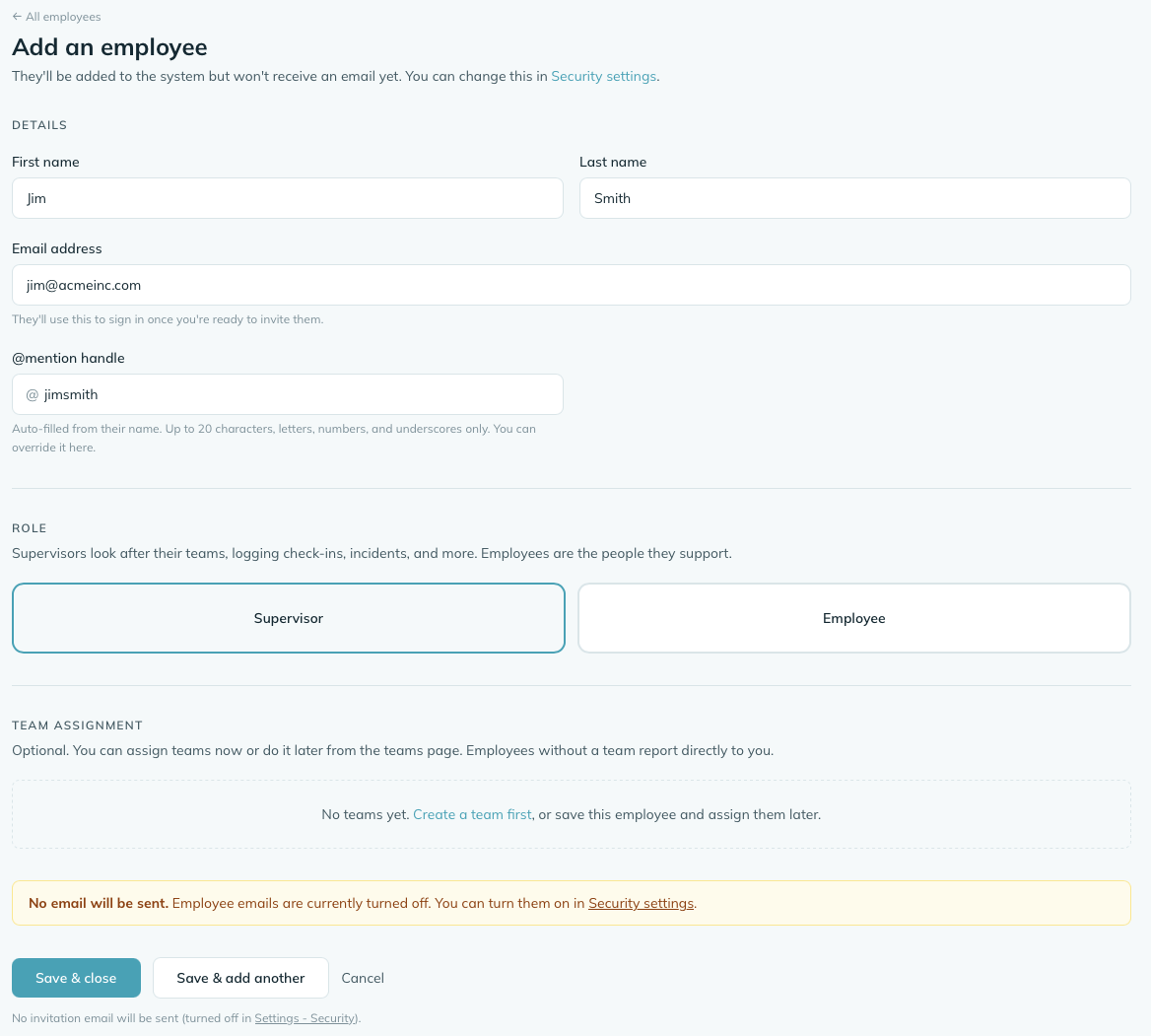
Adding a new person to mizuiro sends them an invitation email with a link to set up their account. You fill in their details; they confirm and set their password.
- Go to Sidebar → People.
- Click Add employee.
- Fill in their name, email, job title, and tier (Manager, Supervisor, Employee, or HR). You can also set their team, employee number, start date, and any other profile fields at this stage, or leave them for later.
- Click Save & close. mizuiro sends the invitation email immediately (when invitations are switched on for that tier under Notifications).
The person has 72 hours to accept the invitation. If it expires before they’ve signed in, you can resend it from their profile.
Every person in mizuiro has an employment status that reflects where they are in their working life at your company. The status shows on their profile and on the People list, and several other modules filter by it.
| Status | What it means |
|---|---|
| Active | Currently employed and working. |
| Probation | Active but under a probationary period. |
| On leave | On an approved leave of absence. |
| Seconded | Temporarily assigned elsewhere. |
| Suspended | Temporarily barred from work. |
| Retired | Left employment (age-related or voluntary retirement). |
| Terminated | Employment ended. |
To change someone’s status, open their profile, click Edit, and find the Status section. There you:
- Pick the new status.
- Choose when it takes effect: Change it now, Schedule for a date (then set the date), or It already happened (then set the date it happened). A scheduled change is applied automatically when the date arrives - handy for a termination effective in two weeks or a return from leave at the end of the month. “It already happened” is for catching up on something that happened off-system: someone who left in June whose record is only being tidied up now. The status changes straight away; the history line carries the date it actually happened. The date has to be today or earlier, and not before they were hired.
- Optionally add a short reason (“Seconded - special project for finance”). The reason is saved with the change and shows on the person’s History tab, whether the change happens now or later.
Now and later use the same control - the only difference is the date. You can also cancel a scheduled change before it runs, from the same place or the banner on the person’s profile.
WarningMoving someone to terminated, suspended, or retired while they have open tasks prompts you to reassign those tasks first. When you apply the change now, mizuiro pauses to let you hand the open tasks off - one at a time, or all to one person - before finishing. A scheduled change that runs automatically doesn’t pause: it applies on the day and leaves any open tasks in place, so reassign them from the Tasks page when you’re ready.
Every joiner and leaver gets the same list, with a name and a date on every line.
Templates (managers, at People → Checklists → Templates) are the company’s list of what happens when someone joins or leaves. Each item has a title, an optional detail, who does it as a role (the manager, the person’s supervisor, the person themselves, or a named colleague), and when as days from the hire date or the last day; minus means before it. Start from a suggested onboarding or offboarding list and change what doesn’t fit.
Starting one (managers and supervisors, at People → Checklists → Start a checklist, or from the nudge on a new hire’s profile): pick the person, the template, and the date it counts from. Every role becomes a real person and every offset a real date. If Tasks is on, tick Also create a task for each item and each line lands in its owner’s task list; ticking either place ticks both.
The run is the list you follow: the owner of a line ticks it, and a manager or the person’s supervisor can tick any. It completes itself when the last item is done. Progress shows on the person’s profile and on the Checklists page, with overdue items called out.
Editing a template changes checklists started from then on; ones underway keep their own copy. A profile nudges you to start onboarding for someone hired in the last 30 days, and to start offboarding when a departure is scheduled.
You can change someone’s tier at any time from their profile page. Promoting moves an employee up to supervisor. Demoting reverses the direction.
The change takes effect immediately. If you’re promoting someone to supervisor, you’ll want to assign them to a team afterward so they have the right scope of access for their role.
Each person’s profile has a set of standard fields:
- Name - first name, last name, and an optional preferred name shown throughout the app.
- Pronouns - displayed on their profile for anyone who interacts with them.
- Job title and employee number.
- Date of birth and hire date.
- Location - useful for distributed teams.
- Unionized - and union name if applicable.
Employees can update their own preferred name, pronouns, and a few other profile details from their account settings. The rest is manager-only.
NoteWhy birthdays are captured differently for employees versus contacts and family members. An employee’s date of birth includes the year, because mizuiro uses it to project their retirement date - the maths needs a full date. Contacts and an employee’s family and close connections (in Kikubari) only capture month and day - no year. Those exist for birthday and celebration planning, where the year isn’t needed to do the job, and storing it would mean holding extra personal information for no reason. Leaving the year out there is a deliberate choice to keep the amount of personal data we collect to the minimum that’s actually useful.
The People list opens on Current: everyone still with the company, whatever their status - active, on probation, on leave, seconded or suspended. Active is narrower: only the people whose status is exactly Active. So someone on probation appears under Current and under Probation, but not under Active. People who have left (terminated or retired) are under their own tabs, or under Everyone. The line under the tabs always says which set you are looking at. The list shows name, tier, team, job title, hire date, and current status at a glance.
Employees see the same list as a directory: name, tier, team, job title and @mention. The status tabs, status pills, card colours, hire dates, and the status and date-hired sorts are all managers, supervisors and HR only, so nobody can browse the roster to find out who is on probation or nearing retirement.
What employees can browse is yours to set, in Settings, Company:
- Who employees can find in People: everyone (the default), only the people on their own teams (and those teams’ supervisors), or nobody. It covers the People list, coworkers' profiles, Teams, search and @mention suggestions. With nobody, People and Teams disappear from their menu and they see their own profile only.
- Let employees see Contacts: on by default. Turn it off if your contacts hold details employees shouldn’t have, like clients’ personal numbers.
You and your supervisors always see everyone you look after.
People who have left aren’t in an employee’s directory or search results. If you’d rather they stayed listed, tick Show employees the people who have left in Settings, Company. They’re then shown with a plain Left label, never whether they retired or were terminated.
Teams (in the sidebar) lists every team with its head count and who leads it. The count is everyone on the team - supervisors included, since they’re on it too, not just watching it.
Managers can Add team, Edit team (rename it, change who’s assigned) and, at the bottom of the edit page, Delete team. Deleting removes the team itself and nothing else: nobody’s account is touched, and anyone who was on it simply ends up unassigned.
Two things can hold a team in place, and the edit page says which:
- Something that happened. A team meeting that took place, or a poll sent to the team. Those records say “standup with Warehouse” and would stop making sense without it, so the team stays. Rename it, or move everyone off it, instead.
- A recurring rule still running against it. That one you can clear: open Recurring on the Touchpoints page, take the team off the rule (or end the rule), then delete the team.
Anything that never happened doesn’t block: meetings still scheduled, meetings that were cancelled, and rules you’ve already ended keep their own records but stop naming the team. The edit page tells you how many before you delete.
Observers are a special account type for people who need to see everything a manager sees but shouldn’t be able to create or change anything - an HR advisor, a business owner who isn’t the day-to-day manager, a compliance auditor.
Observers don’t count toward your employee cap. You can invite an observer the same way you’d invite any team member; just set their tier to Observer.
People doesn’t have a dedicated settings section of its own, but a few company-wide settings affect how it works.
Tier labels - Settings → Company → Team structure
Renames Manager, Supervisor, and Employee throughout the app to whatever terminology fits your organization. The labels carry through to every module.
Employee cap
Your company has a cap on the number of active employees (active, probation, on leave, and seconded statuses count toward it). The default is 250. If you’re approaching it, get in touch and we’ll see what we can do to help.
People doesn’t include dedicated dashboard widgets in this release.
Can I have more than one manager?
There’s one manager account per company, but you can add any number of observers who see everything the manager sees. If you need a second person with full access, observer access is the right fit.
What happens to someone’s data when they’re terminated?
Their profile, history, tasks, incidents, touchpoints, and other records all stay in mizuiro. Termination changes their status and removes their access; it doesn’t delete anything. You can still look up their profile and records after the fact.
They do come off their teams: marking someone terminated or retired removes them as a member and as a supervisor of every team, so a team page never shows someone who has left as still leading it. The history tab records which teams they came off. Rehiring doesn’t put them back; add them to a team again when they return.
Anything that hadn’t happened yet is taken off their plate too: they come off the guest list of meetings that haven’t been held, lose any scribe role on those meetings and on recurring ones, their scheduled 1-on-1s are cancelled, and pending or future time off is cancelled. Everything that already happened stays exactly as it was. The audit log gets one line saying what was withdrawn.
From then on they’re a record, not a participant. They aren’t offered when you add a review, warning, kudo, award or anything else about someone, they don’t count in dashboard to-dos like overdue reviews or open plans, and they don’t get emails or bell notifications. You can still @mention them in notes, and reports about what happened while they were here still include them (see Reports).
Can I export an employee’s records?
Yes. On any employee’s profile page, there’s an export option that produces a ZIP file of their key details and employment history. Depending on which modules you have enabled, this can include their touchpoint history, training certifications, and other records.
Can an employee update their own profile?
Partially. Employees can update their preferred name, pronouns, and a small set of personal details from their account settings. Employment details - job title, team, status, start date - are manager-only.
What’s the difference between Retired and Terminated?
Both mean the person has left, and both take them off teams and out of upcoming plans. Retired is for age-based or voluntary retirement; Terminated is for all other employment endings. Neither can sign in by default, but you can let retired people keep access in Settings, Security (see Security); terminated people never can. The distinction also matters for record-keeping and for filtering your roster by status later.
NoteHow to read this: ✓ can see it, ✗ can’t, ○ depends on a setting or condition (explained under the table). As a manager, you always see everything in your company.
| What | You (manager) | Supervisor | Employee |
|---|---|---|---|
| Employee list | ✓ | ✓ | ✓ |
| Full profile (timeline, all module tabs) | ✓ | ○ | ✗ |
| Basic profile (name, team, contact info) | ✓ | ✓ | ✓ |
| Own profile | ✓ | ✓ | ✓ (limited tabs) |
| Add / edit / change status | ✓ | ✗ | ✗ |
| Edit limited details (preferred name, pronouns, phone) | ✓ | ○ | ✗ |
- ○ Supervisor (full profile): in shared scope, supervisors have full access to every employee’s profile. In assigned scope, supervisors have full access only to employees who share at least one team with them.
- ○ Supervisor (edit details): supervisors can edit preferred name, pronouns, and phone numbers for employees they have full access to.
- Employee (own profile): employees can always view their own profile with a reduced set of module tabs (tasks, expenses, conferences, training, awards, kudos, performance). They do not see the presence calendar, incidents tab, or history timeline on their own profile.
- Employee (other profiles): employees can view the employee list and basic profile information for anyone in the company (name, title, team, @mention, email), but cannot access full profiles, timelines, or module tabs for other people. Employment status, hire date and the other employment details are hidden from them on the list, the team page, search results and the coworker’s card alike.