
Expenses
The Expenses module handles employee expense report submission and approval. Employees submit reports; supervisors and managers approve them through a configurable workflow. Approved reports can be exported as CSV for payroll or accounting.
- Who can use it: all tiers can submit their own expense reports. Supervisors approve reports for their team. Managers approve everything.
- Where: Sidebar → Expenses.
- Default: off. Enable it at Settings → Modules.
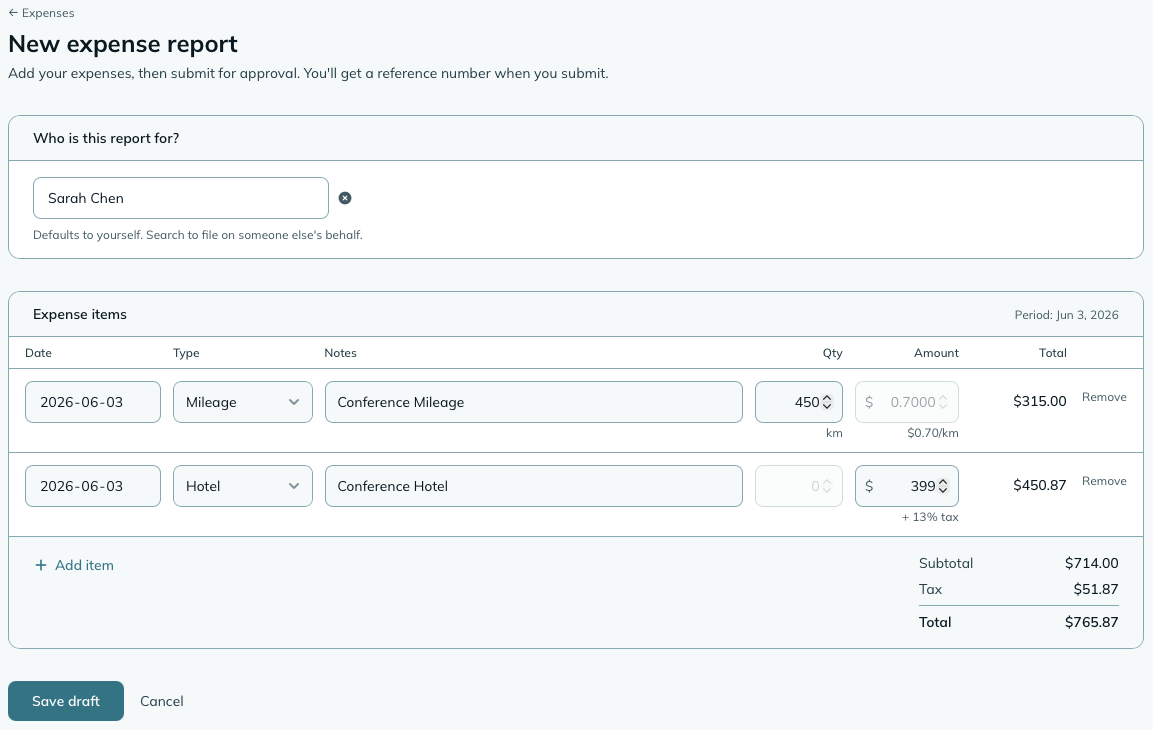
Expense reports group one or more line items - individual expenses - under a single submission. The report’s date range is automatically calculated from the earliest and latest expense dates you enter.
- Go to Sidebar → Expenses.
- Click Add report.
- Add line items using the Add item button. For each item:
- Select the expense type (mileage, meals, accommodation, or whatever your company has set up).
- Enter the date of the expense.
- Enter a description and any notes.
- For fixed-rate types (like mileage), enter the quantity (e.g. kilometres) - the rate is set by the expense type and can’t be changed.
- For variable-rate types, enter the amount directly.
- Click Save draft. When it’s ready, open the report and click Submit for approval.
Each expense report gets a reference number (EXP-DDMMMYY-XXXX) once saved. You can paste
this into the search bar to jump straight to the report, or include it in correspondence
with your finance team.
Once submitted, a report moves through your company’s configured approval chain. There are three options:
- Supervisor approves - the supervisor’s approval is final. If the employee has no supervisor, it goes to the manager. The default.
- Supervisor, then manager - the supervisor approves first, then it goes to the manager for final sign-off.
- Manager approves - reports go directly to the manager, skipping the supervisor step.
Approvers see reports pending their action in the Pending Approvals widget and on the Expenses page under the Awaiting me tab (managers also get Awaiting supervisors, so you can step in when a supervisor is away). A report the age limit or the manager review amount has sent to you is yours alone: the employee’s supervisor doesn’t get the buttons, and can’t approve it any other way. Nothing can be approved or sent back unless it’s waiting on someone, so a draft, or a report that’s already approved and paid, stays as it is.
To approve or send back a report, open it and click Approve or Send back. Sending back requires a note explaining why. The employee can then edit the report and resubmit.
WarningSubmitted reports can’t be edited until they’re sent back. If an employee spots a mistake after submitting, a manager or supervisor needs to send the report back (with a note) so it goes back to draft. Then the employee can fix it and resubmit.
Approved isn’t the end: someone still reimburses the person. On an approved report a manager clicks Mark as paid, picks the date (today by default) and adds an optional reference (a cheque number, a payroll run). The report reads Paid from then on; until then it reads Approved, unpaid. Undo is a click if it was marked by mistake.
The Expenses page has an Awaiting payment tab with the count of approved, unpaid reports, and a Mark all as paid button that clears the lot with one shared reference, for a payroll run. Supervisors approve; only managers mark paid.
Until you turn them on, nothing in the expense chain emails anyone: the approver watches the queue and the person who filed the claim watches the report. Three notifications change that, each off by default, at Settings → Notifications:
- When an expense report is submitted tells whoever the report is now waiting on - the supervisor, or the manager, depending on where the chain routed it.
- When an expense report is approved or sent back tells the person who filed it. A send-back includes the reviewer’s note in the email, because that note is the whole point.
- When an expense report is paid tells them again, with the payment reference if you recorded one.
Nobody is ever told about their own action, so a manager who files and approves their own claim doesn’t email themselves.
Once a report has received final approval, a CSV export becomes available on the report’s detail page. The timing is intentional - the CSV is the handoff to your finance team, so it’s only available once the approval chain is complete and the report is ready to act on.
The CSV includes all line items with expense type, date, description, quantity, unit amount, total, and tax where applicable. It’s designed to give your finance team everything they need to reimburse the employee, without requiring them to log in to mizuiro.
Supervisors and managers can export approved reports; employees can’t.
Managers can create expense reports on behalf of any employee. Supervisors can create for their team members. This is useful when someone doesn’t have app access or when you’re entering a reimbursement retroactively.
When creating, select the employee from the For field at the top of the form. The workflow and approval chain work the same way as a self-submitted report.
Settings → Expenses
Approval chain
How reports flow through approval. Options are supervisor approves (the default), supervisor then manager, or manager approves.
Currency symbol
The symbol shown on expense totals and in exported CSVs. Defaults to $. mizuiro shows a
symbol, not a full currency - the whole module runs in whichever single currency your
company picks here, so there’s no conversion and no per-expense currency switching.
The plain dollar sign $ covers the US dollar and every other currency that writes its
amounts with a bare dollar sign. The Australian and Canadian dollars get their own entries
(A$, C$) only because some teams like to spell out which dollar they mean on shared
reports - they’re a convenience, not a requirement. If your company is in the US, use the
plain $.
| If your currency is… | Choose |
|---|---|
| US dollar | Dollar ($) |
| Canadian dollar | Canadian dollar (C$) (or plain $ if you prefer) |
| Australian dollar | Australian dollar (A$) (or plain $) |
| British pound | Pound (£) |
| Euro | Euro (€) |
| Japanese yen / Chinese yuan | Yen / Yuan (¥) |
| Swiss franc | Swiss franc (CHF) |
| Danish / Norwegian / Swedish krone/krona | Krone / Krona (kr) |
| Indian rupee | Rupee (₹) |
| Philippine / Mexican / other peso | Peso (₱) |
NoteThis setting only changes how amounts are displayed. It doesn’t convert values or do any exchange-rate math. Pick the symbol that matches the currency your team actually expenses in.
Thousands separator
How numbers are formatted. Defaults to a comma (1,234.56).
Distance unit
Whether mileage expense types display kilometres or miles. Affects the label on fixed-rate mileage items.
Expense age limit
Optionally set a number of days after which an expense is considered stale. If set, a report whose earliest expense is older than the limit skips the supervisor and lands in the manager’s queue for a closer look; nothing is blocked. Leave blank to treat every report the same regardless of age.
Manager review amount
Optionally set an amount that flags a big individual expense for your approval. If any single item on a report costs more than this, the report skips the supervisor and lands in the manager’s queue instead. A report made up of lots of smaller items can still add up to a large total without triggering this, so honest, itemized reports keep flowing through the normal chain. Leave blank to send every report through the usual approval workflow.
Expense types
The catalogue of expense categories your team can claim against. Manage them at Settings → Expenses → Expense types.
Each type has:
- A name and GL code.
- A rate type: fixed (you set the per-unit rate and unit label, like
$0.67/km) or variable (the employee enters the amount). - Optionally, a tax rate if the expense is taxable.
You can archive expense types you no longer use. Archived types stop appearing on new reports; existing reports that used them are unaffected.
Submission instructions
Optional. A free-text block where you can spell out what your team should and shouldn’t claim, what receipts to attach, or any other house rules. When you fill it in, the text appears as a “Before you submit” card at the top of the expense form on both new and edit. Leave it blank to hide the card entirely.
Useful for things like “Don’t claim alcohol or personal items”, “Attach receipts for anything over $25”, or “Use the corporate card for hotels - don’t expense them”. Line breaks are preserved, so you can list points across multiple lines.
Widget colour
Sets the accent colour for Expenses dashboard widgets.
| Widget | Size | What it shows |
|---|---|---|
| Pending Approvals | 1x1 | Reports currently waiting for your approval. Shows the submitter, total, and submission date. |
| Monthly Total | 1x1 | Total approved expense spend for the current month. |
| Monthly Spend | 2x1 | Approved expense totals for the current month broken down by expense type. |
Can an employee see the send-back note?
Yes. When a report is sent back, the employee sees the note when they open the report. This is intentional - they need to know what to fix before resubmitting.
What happens to a report if the approving supervisor leaves the company?
If a supervisor with pending approvals in their queue is terminated (or on holiday), a manager can step in and approve or send back those reports directly from the Awaiting supervisors tab. The manager sees all reports regardless of the approval chain step.
Can I change the approval chain after reports have been submitted?
Yes, but it only affects new submissions. Reports already in the approval process continue through the chain that was in effect when they were submitted.
Are expense notes visible to the employee?
Yes. Line item notes and the send-back note are all visible on the report to the employee and to every approver. There is nowhere on an expense report to write something the employee can’t see; if you need a private note about a claim, it belongs in your own records, not on the report.
Can I export all expenses for the month in one go, rather than report by report?
The current export is per-report. For a bulk export across all approved reports, use the Reports module if it’s enabled, which can generate company-wide expense summaries.
NoteHow to read this: ✓ can see it, ✗ can’t, ○ depends on a setting or condition (explained under the table). As a manager, you always see everything in your company.
| What | You (manager) | Supervisor | Employee |
|---|---|---|---|
| Expense reports | ✓ | ○ | ✓ (own only) |
| Create / edit / submit | ✓ | ○ | ✓ (own only) |
| Approve / send back | ✓ | ○ | ✗ |
| Mark paid | ✓ | ✗ | ✗ |
| CSV export | ✓ | ○ | ✗ |
- ○ Supervisor: in shared scope, supervisors see all expense reports. In assigned scope, supervisors see their own reports plus reports from their team members.
- Employee: employees see only their own expense reports. They can create, edit, and submit their own reports, but cannot approve, send back, mark paid, or export.