
Two-factor authentication
mizuiro requires 2FA for every account in your company. It’s the single most effective protection against account takeover and the cost is one extra screen at sign-in. You don’t have a way to turn it off for the whole company, and we recommend against it even where similar tools offer the option.
What you do control:
- Trust this browser lets your team skip the 2FA prompt for 30 days on the same browser. Off by default. Turn it on for your whole company under Settings → Security if sign-in friction is hurting your team’s actual work.
- Trusted IPs let supervisors and employees skip the 2FA prompt when they connect from a network you specify (your office, say). Managers always complete 2FA regardless. Off until you add an address under Settings → Security.
- Recovery codes are eight single-use codes generated for your company at setup. They’re the only way back in for someone who’s lost everything. Save them somewhere offline.
You went through this during signup. Quick reminder of what happened, since you’ll see your team go through the same flow when they accept their invitation:
- After your password, mizuiro shows a QR code.
- You open an authenticator app on your phone and scan it.
- The app starts showing a six-digit code that changes every 30 seconds.
- You type the current code into mizuiro to confirm.
- mizuiro shows eight recovery codes. You save them somewhere safe.
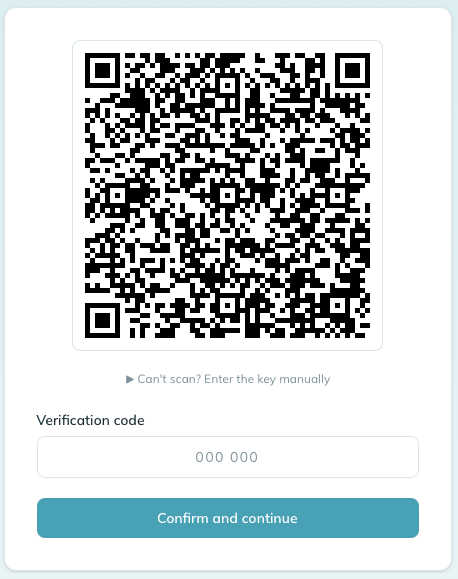
Any authenticator app works. 1Password, Authy, Google Authenticator, and Microsoft Authenticator are all common picks. If your team doesn’t already standardize on one, any of those four is a great starting point - whichever the team finds most familiar.
If your team is signing in multiple times a day from the same laptop, the constant 2FA prompts get old. Trust-this-browser lets each person opt in to skipping the prompt on a familiar browser for 30 days.
To turn it on:
- Go to Settings → Security.
- Toggle Allow trusted browsers on.
- Save.
From then on, the 2FA screen shows each user a “Trust this browser for 30 days” checkbox. Ticking it skips the prompt on subsequent sign-ins from that browser, capped at five trusted browsers per person. Password changes, suspensions, and 2FA resets all revoke the trust immediately.
WarningThis is a real security tradeoff. Trust-this-browser softens 2FA from “every sign-in” to “once a month per browser.” For most small teams that’s a reasonable swap for the reduction in friction. For an organization handling especially sensitive HR data, you may prefer to leave it off and keep the prompts.
If your team works from a fixed network - an office with a known public IP address, for example - you can let supervisors and employees skip the 2FA prompt while they’re on it.
Under Settings → Security, add one IP address or range (in CIDR notation) per line to Trusted IPs. From then on, when a supervisor or employee signs in from a matching address, mizuiro accepts their password and skips the code step.
Two things stay locked down:
- Managers always complete 2FA, trusted IP or not. The bypass is limited to lower-privilege accounts on purpose.
- It only skips the prompt for people who’ve already set up 2FA. It never skips the initial setup.
Every trusted-IP sign-in is recorded in your audit log, so you can always see when it was used and by whom.
WarningThis is a bigger tradeoff than trusted browsers. A trusted IP means anyone on that network who has a supervisor or employee’s password gets in without the second factor. Only add networks you control yourself, use the narrowest range that covers them, and leave it off entirely if you’re not sure.
Best case, they have a recovery code saved. Each code works once, gets them signed in, and lets them reset 2FA on a fresh device under Settings → Security → Two-factor.
If they don’t have a recovery code, you can reset 2FA for them from their profile page. Go to Sidebar → People → [their name] → Reset 2FA. They’ll be walked through setup again on their next sign-in.
WarningConfirm who you’re talking to before resetting their 2FA. This is the same control that protects against account takeover, so the verification matters. A quick video call, a chat with someone in person, or a confirmation through a trusted channel are all fine. Don’t reset based on a single email from “the employee” - that’s the exact attack 2FA exists to stop.
A 2FA reset invalidates every sign-in session for that user. This is intentional. If someone’s been signed in on an old phone, this is also how you cut that off.
Recovery codes are issued once, during setup, and can’t be regenerated from the Security page. If the company has used all eight, contact mizuiro support to have a fresh set issued.
The codes are time-based. The user’s phone clock and mizuiro’s clock need to agree to within about 30 seconds. If a user is typing the code correctly and it’s still rejected, ask them to check their phone’s clock is set automatically (usually Settings → Date & time → Set automatically).
If a user has lost their phone, used up their recovery codes, and can’t reach you for a reset, the last resort is mizuiro support. That process is slow on purpose, because rushing it would create the exact account-takeover risk 2FA exists to prevent.