
Touchpoints
Touchpoints is the place for your structured interactions with your team: 1-on-1s, informal check-ins, standups, and formal team meetings. Each one captures what was discussed, how people are doing, and what needs to happen next.
- Who can use it: managers and supervisors run touchpoints; employees can see their own if you enable that option, and can request a meeting when employee requests are turned on.
- Where: Sidebar → Touchpoints.
- Default: off. Enable it at Settings → Modules.
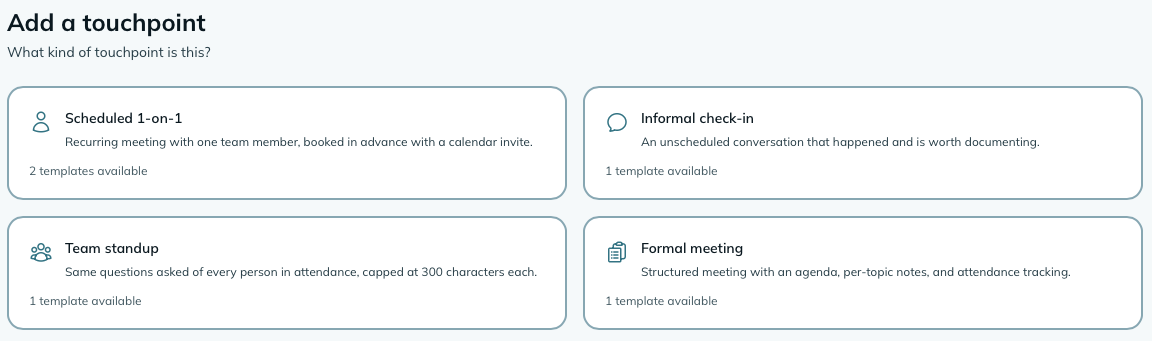
Touchpoints come in four kinds. You pick the kind when you create one, and the form adjusts to match.
| Kind | When to use it |
|---|---|
| Scheduled 1-on-1 | A regular meeting with one person, booked in advance. |
| Informal check-in | A quick conversation happening now - no scheduling needed. |
| Team standup | A brief recurring meeting where each person answers the same questions. |
| Team formal | A structured team meeting with an agenda and shared discussion. |
To create a touchpoint:
- Go to Sidebar → Touchpoints.
- Click Add touchpoint.
- Select the kind that fits. The form updates based on your choice.
- Choose a template, the attendee (for 1-on-1s) or team (for team meetings), and the date.
- Click Schedule to book it, or Start for an informal check-in.
If you have calendar invites turned on, mizuiro sends a .ics file to the attendee or team
when you schedule a 1-on-1, a standup, or a formal team meeting. A reminder goes out ahead
of it as well, the day before unless you change it in settings.
Every scheduled touchpoint follows a two-step lifecycle: plan it first, then record it when the meeting happens.
Before the meeting (planning), you can review the template, build out action items, and set up the meeting link if it’s virtual. The form shows only the fields that matter at this stage.
When it’s time to meet, click Start meeting on the touchpoint. The form switches to recording mode and the full set of fields opens up:
-
Template questions - the structured prompts you set up in advance. The answers are the record of what was actually discussed.
-
Signals - four optional at-a-glance ratings you can record alongside the conversation: wellness (how the person is doing overall), capacity (are they overloaded or underloaded), engagement (how connected they seem to the work), and flight risk (your read on retention). Your template controls which of these appear.
-
My private notes - your own private notes, in two parts, visible only to you and the manager and never to the employee (or, on a team meeting, the team):
- Before - prep and topics you want to raise. You can add to this any time before the meeting, so jot things down through the week as they come up.
- After - your own thoughts on how it went, written up once the meeting is done.
These are for you, not a shared record. Nothing you write here appears on the calendar invite or anywhere the employee can see.
WarningFlight risk is only visible to you and the supervisor who conducted the touchpoint. Other supervisors cannot see it, and the employee never sees it. It’s intended as a private retention signal, not something that gets shown around.
When you’re finished, click Mark complete. The record locks and becomes read-only, including the responses, signals, and any action items.
TipThis form autosaves a draft as you type, so a closed window won’t lose what you’d written. Open it again and you’ll be offered the draft back.
For virtual meetings, select Virtual as the format when scheduling. A meeting link field appears where you can paste a Zoom, Teams, or other meeting URL. The link is included in the calendar invite email so attendees can join with one click.
Meeting links support any URL scheme, so https://zoom.us/j/..., msteams://..., and
similar app-specific links all work.
Scheduled 1-on-1s have a Keep this private option right on the launcher, so you can mark a sensitive meeting private before it’s even saved. Once inside the touchpoint, every 1-on-1 and informal check-in has a Private toggle on the form.
Privacy controls who can see the record:
- Private turned ON - only you (the person running the touchpoint) and the manager can see it. Other supervisors won’t see it in the list or in the employee’s touchpoint history, and the employee never sees it. A private scheduled 1-on-1 also suppresses the calendar invite, even if calendar invites are turned on.
- Private turned OFF (the default) - the touchpoint is visible to the other supervisors on that person’s team, along with the manager. The employee can see it too, if you’ve turned on employee visibility in settings (and even then, never your private before/after notes or the flight risk signal).
So an off toggle does not mean hidden - it means the record is shared with the team’s supervisors in the normal way. Turn it on only when you want a 1-on-1 to stay between you and the manager: a sensitive topic, or a performance conversation you’re not ready to involve the wider team in.
Informal check-ins are for conversations happening right now: a quick chat in the hallway, a five-minute sidebar that turns into something worth writing down.
Creating one is the same flow as scheduling, but there’s no date picker and it goes straight into recording mode. Write down what you discussed, capture any signals, add action items, and complete it when you’re done.
An informal check-in never emails the employee - it’s simply your record of a conversation that already happened. You can mark it Private using the toggle on the form, which is handy when the check-in touches on something sensitive.
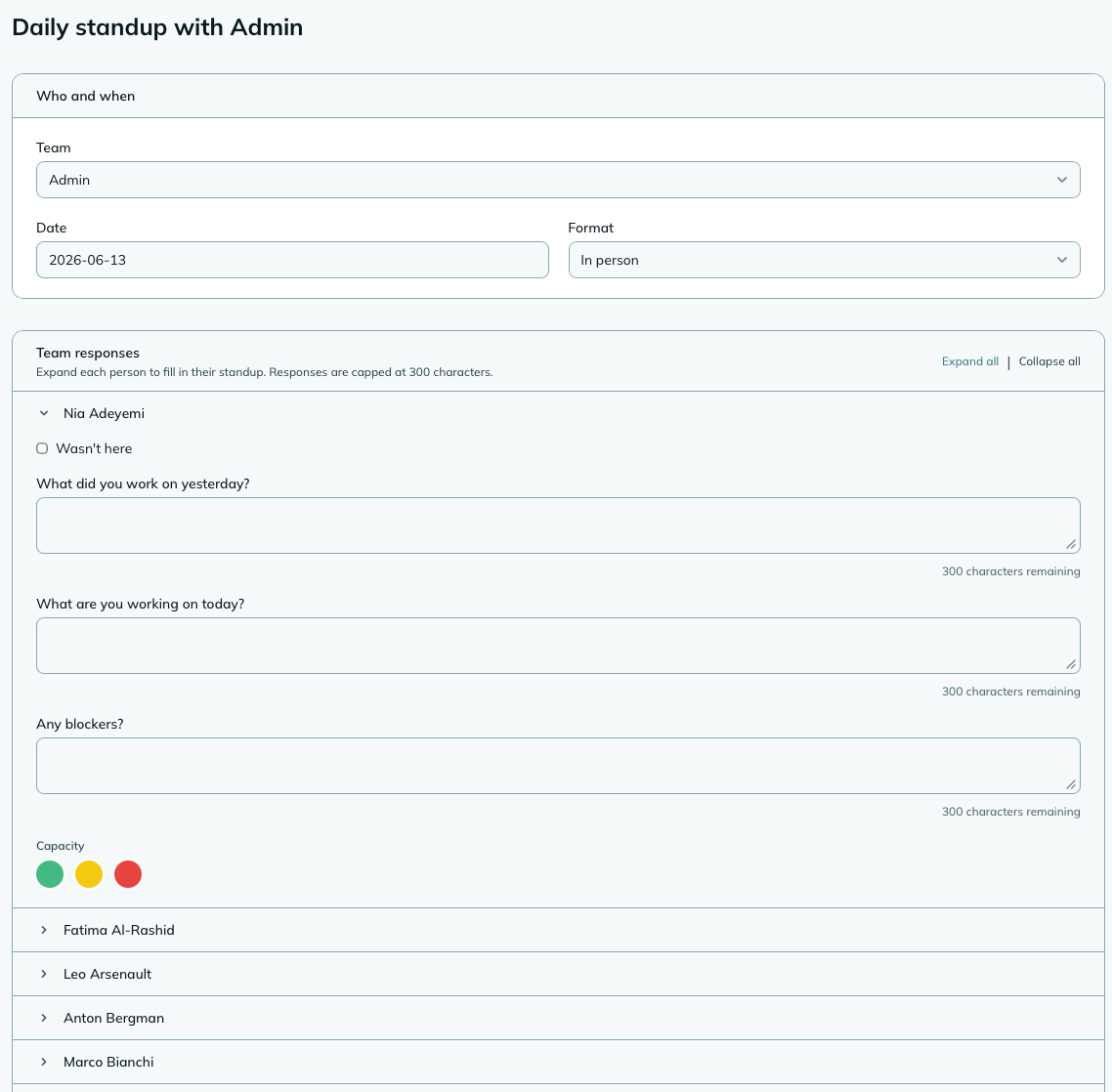
For standups, each person in attendance gets their own set of template questions. You fill in each person’s answers separately, which means you can capture how different people responded to the same prompt without flattening it into one combined note.
For formal team meetings, the form includes a numbered agenda you build before or during the meeting. Each agenda item has a title and a notes field. The template questions sit below the agenda and apply to the meeting as a whole.
Light meetings. Not every formal meeting needs structured questions. The Discussion template (provided by default alongside Team meeting) is just your agenda plus one box, What came up. It suits a recurring catch-up with your supervisors, or any meeting where “what I want to cover, then what they said” is the whole shape. Put the people in a team of their own (a “Supervisors” team, say; people can belong to several teams) and schedule the meeting against it.
Multi-team meetings. Formal team meetings can span multiple teams. When creating one, you can choose All teams to include everyone, or select specific teams. The attendance roster is built from whichever teams you pick.
Anyone else? Someone who isn’t on any of those teams - a person who reports to you directly, say - can be added to a standup or formal meeting by name under Anyone else? when you schedule it, or later from the planning form while it’s still scheduled. They get the invite and a place on the roster like everyone else, and a recurring meeting keeps them on every occurrence. No need to create a one-person team.
Scribe. Team meetings (standups and formals) can have a scribe - someone designated to take notes during the meeting. The scribe can fill in template responses and agenda notes, but can’t change the meeting setup (who’s involved, which teams, or privacy) and can’t see or write your private before/after notes (those are yours alone). Assign a scribe when scheduling, or leave it blank if you’re taking your own notes.
At the bottom of any touchpoint form, you can add action items: follow-up tasks for specific people, with an optional due date.
Action items stay attached to the touchpoint where they were created. If you check Create task automatically when adding an item, mizuiro creates a linked Task right away and emails the assignee. If you skip that, you can always convert it to a Task later with one click from the touchpoint’s show page.
Ticking an item done. An action item that isn’t a task can be ticked off on the touchpoint page (and un-ticked). One that became a task is done when the task is resolved: the item links to its task, and if you’re the assignee, the person who handed it out, or a manager, a Resolve control right there on the touchpoint takes the closing comment and closes the task without leaving the meeting.
Open items carry forward. Anything not done by the next touchpoint in the chain comes along automatically: at the moment you record a check-in on the spot, or when you click Start on a scheduled one, so items added to last time’s record in between still travel. Each carried item says where it came from (“Since TCP-xxx (3 meetings)”), so something that keeps lingering is visible for what it is. Carried items share their original’s task rather than making a second one, and you can remove a carried item like any other. The chain works for one-on-ones (by person) and for recurring team meetings (by series).
A standup that happens every weekday, or a team meeting every second Monday, shouldn’t have to be scheduled by hand each time. When you schedule a standup or formal meeting, the launcher has a Repeat choice:
- Daily (with a weekdays only toggle, on by default), weekly, monthly, or yearly. The date and time you pick become the first meeting and set the pattern: the weekday for weekly, the day of the month for monthly, the date for yearly.
- Every N: leave it at 1 for every week (or day, month, year), or set 2 for every second week, 3 for quarterly, and so on. The pattern counts from the first meeting.
- Until: an optional end date. Leave it blank for “until further notice”.
- Send the invite automatically (formal meetings only): a one-off formal meeting waits for you to send its invite once the agenda is ready. For a standing meeting that’s a click per occurrence, so the repeat setup offers to send each one for you. Standups always invite.
mizuiro then creates the upcoming meetings ahead of time, two weeks’ worth for daily, eight weeks for weekly, two months for monthly, two years for yearly, and tops them up every night. Each one is a normal touchpoint: it sends its own calendar invite, gets a day-before reminder, and you start and record it exactly as you would a one-off. Meetings that would land on a company closure are skipped.
Each occurrence stands on its own. Move one, cancel one, or change its scribe, and the rest of the series carries on. Clicking Edit on one of them asks which you mean - just that meeting, or the whole series - so you never change the rule when you meant to move one date. You can also reach the rule from Recurring at the top of the Touchpoints page: from there you can edit the cadence, time, teams, template, or scribe (upcoming meetings nobody has touched are rebuilt under the new rule; anything already started or with an agenda is left alone), pause it (nothing new is created until you resume), or end it (upcoming meetings are cancelled with a notice; past ones are kept).
NoteMissed meetings. If a recurring meeting is never started, it’s marked missed and cancelled automatically three days after its time, so stale meetings don’t pile up in your list. The series page counts them, which is useful information in itself.
Recurring meetings are for standups and formal team meetings. 1-on-1s chain through follow-ups instead, so each one can carry forward what was said last time.
At the bottom of any touchpoint form, there’s a What’s next section with a date picker for scheduling a follow-up. Set a date and when you save, mizuiro creates a new touchpoint of the same kind for the same person or team, pre-linked to the one you just finished. The chain builds over time, so you can always see the previous touchpoint from any record and get the full history in context.
For scheduled 1-on-1s, standups, and formal meetings, the follow-up sends a calendar invite
to everyone involved so the date lands on their calendar. For informal check-ins, you’ll get a
personal reminder email with a .ics file - no one else is notified.
If you’ve turned on Employees can request a touchpoint, employees see a Request a meeting option in the app. They can send it to My supervisor (whoever supervises their team) or to The manager, with a short topic so you know what it’s about.
Pending requests show up in a banner at the top of your Touchpoints list. A request to “any of my supervisors” goes to the supervisors of that person’s own teams (and to you, as the manager); other supervisors don’t see it or its topic. When you accept one, mizuiro opens a scheduled 1-on-1 with the requester already picked and their topic shown above the form; pick a time and schedule it, and the request is linked to the meeting that answered it.
Templates are the structured questions that appear on each touchpoint form. mizuiro creates five defaults when you first open the settings page: one for each kind, plus the light Discussion formal meeting. You can edit them, create your own, and have multiple active templates per kind.
To manage templates, go to Settings → Touchpoints and look for the template section. Each template has:
- A name and optional description.
- A set of questions (up to whatever you need), each with a label, optional hint text, and a field type (text area, single-line text, or dropdown with 2-12 options).
- Signal toggles for 1-on-1s and standups: choose which of the four signals (wellness, capacity, engagement, flight risk) to show on the form.
All settings are at Settings → Touchpoints.
When to send the reminder
The day before (the default), 2 or 3 days before, or a week before. The reminder itself is switched on or off on the Notifications page.
Employees can see their own touchpoints
When on, employees can view their own completed 1-on-1s and check-ins, including the template responses. Off by default. Worth enabling when you want the record to serve as a shared reference - the employee can look back at what was agreed.
Each touchpoint records this setting at the moment it’s created. Turning it on or off only affects new touchpoints going forward; existing records don’t change.
NoteEven when employee visibility is on, your private before/after notes and the flight risk signal are never shown to the employee. They see the template responses and the wellness, capacity and engagement signals. Action items stay with you and your supervisors; an action item reaches the employee only when you turn it into a task assigned to them.
Employees can request a touchpoint
When on, employees can submit a meeting request with a topic. Managers and targeted supervisors see pending requests in a banner on the Touchpoints page. Off by default.
Calendar invites and reminders aren’t on this page any more: they’re per-event toggles at Settings → Notifications (the 1-on-1 invite, the standup email, the formal meeting invite, and the day-before reminder), all off by default.
Widget colour
Sets the accent colour for Touchpoints dashboard widgets. Pick what works for your dashboard layout; this doesn’t affect anything else.
Touchpoints includes five widgets. The wellness and capacity trend widgets are particularly useful once you have a few months of 1-on-1 and standup data.
| Widget | Size | What it shows |
|---|---|---|
| This Week’s Touchpoints | 2x2 | Scheduled touchpoints due in the next seven days, up to five, with a link if there are more. |
| Recent Activity | 2x1 | The last five completed touchpoints, with links to each. |
| Touchpoints Completed (30d) | 1x1 | Count of completions in the past 30 days and a trend vs. the 30 days before that. |
| Team Wellness | 1x1 | The most common wellness rating from 1-on-1s and standup check-ins in the past 30 days, with a small bar breakdown of the distribution. |
| Team Capacity | 1x1 | Traffic light distribution (green / yellow / red) across the same 30-day window, so you can see whether your team is generally in good shape or overloaded. |
All five are available from the Add widget button on your dashboard.
Can an employee see the signals I record for them?
If employee visibility is on, the employee can see wellness, capacity, and engagement signals on their touchpoints. Flight risk is the exception - it’s visible only to the supervisor who conducted the touchpoint and to managers.
What’s the difference between my private notes and template responses?
Template responses are what you fill in during the meeting - they’re the structured record of the conversation, and the employee can see them when employee visibility is on. Your private notes (before and after) are just for you and the manager, encrypted at rest, and the employee never sees them.
Can I cancel a meeting I’ve scheduled?
Yes, as long as it hasn’t started yet. Open the scheduled touchpoint and click Cancel meeting. The record is kept (marked cancelled) rather than deleted, so there’s still a trace it was booked, and anyone who already got the calendar invite is sent a cancellation so their calendar updates. Once you’ve started a meeting it can’t be cancelled - complete it instead. Cancelled meetings drop off the main list; the Cancelled filter tab brings them back if you need to look.
Can I edit a touchpoint after completing it?
No. Completing a touchpoint locks it. The record, responses, action items, and signals all become read-only. If you need to add a note after the fact, the best option is to open the next touchpoint in the chain and note it there.
Can I have different templates for 1-on-1s and team meetings?
Yes. Templates are specific to a kind. Your 1-on-1 templates only appear when scheduling a 1-on-1; standup templates only appear for standups. You can have multiple active templates per kind and choose the right one at the time of scheduling.
NoteHow to read this: ✓ can see it, ✗ can’t, ○ depends on a setting or condition (explained under the table). As a manager, you always see everything in your company.
| What | You (manager) | Supervisor | Employee |
|---|---|---|---|
| Touchpoint records | ✓ | ○ | ○ |
| Template responses | ✓ | ○ | ○ |
| My private notes (before / after) | ✓ | ✓ (conductor only) | ✗ |
| Wellness / engagement / capacity signals | ✓ | ○ | ○ |
| Flight risk | ✓ | ✓ (conductor only) | ✗ |
| Action items | ✓ | ○ | ✗ |
- ○ Supervisor: scope-dependent. In shared scope, supervisors see all touchpoints except private ones conducted by someone else. In assigned scope, supervisors see touchpoints they conducted, ones that involve their team members, team meetings for their teams (including company-wide ones, even before they start), and any meeting they’re named scribe on, and never another supervisor’s private touchpoints.
- ○ Employee: their own touchpoints only, never private ones, and only when “let employees see their touchpoints” was on at the time the touchpoint was created (a Touchpoints setting). When visible, the employee sees the template responses and the wellness, capacity and engagement signals, but never your private before/after notes, the flight risk signal, or the action items (those reach them only as tasks).
- My private notes and flight risk: visible only to you and the supervisor who conducted the touchpoint, plus managers. Other supervisors and the employee never see them.